
Cut Token Use in AI Novel Writing: Smart Context Assembly Guide
Why tokens balloon and a three-step fix: live token estimates, “Full” to “Names only”, outlines on demand, with three tested presets and over-limit protection.
In this article 10 sections
You only asked AI to continue a passage of two thousand characters, yet a big chunk of your credits is gone. The problem is often not the “output” but the “input”: before every writing request, the system by default stuffs the whole book’s architecture, settings, characters and suspense into AI, and this “reading material” overhead is the real culprit behind ballooning tokens.
The good news: this part is entirely controllable. Maliang Writer’s “smart context loading” lets you decide how much material to feed AI each time. This article uses a three-step method to teach you to spend your credits where they count.
Key Points
- Ballooning tokens come mainly from the “input side”: by default the novel material is assembled in full, not from AI’s output.
- Smart context loading = “assemble on demand” by scenario, rather than “stuff everything in” each time.
- Before sending, Maliang Writer estimates this assembly’s tokens in real time and compares them with the default cap of 60,000, flagging in red when over.
- Three ways to save tokens: change “Full” to “Names only”, turn on chapter/volume outlines on demand, and turn off dimensions you don’t use.
Why Do Tokens Balloon?
Because large models bill on the total of “input + output”, and the novel material on the input side often takes up far more room than the few thousand characters you write. A book’s full set of settings, characters, suspense and architecture stacked together easily comes to tens of thousands of tokens, consumed again every time you write a chapter.
Many people try to save by watching “how many characters AI wrote”, and that’s the wrong direction. The real bulk is “how much material AI reads each time”. The fuller the material you give, the less AI goes off track, but the higher the cost of each generation: a balance you have to weigh actively.
Observed in testing: In our internal tests, changing settings and characters from “Full” to “Names only” usually noticeably reduces the context tokens of a single writing run, with almost no perceptible effect on quality for everyday chapters. The key to saving is telling apart “which material AI can really use right now”.
To understand the overall cost structure of AI writing, see Maliang Writer Free vs Paid.
What Is “Smart Context Loading”?
Smart context loading puts the switch of “how much material to feed AI” in your hands, giving by scenario instead of mindlessly turning everything on each time. Its opposite is “stuffing everything in”: sending the whole book’s material out in one lump no matter what you’re writing.
The core idea is plain: when AI writes everyday chapters, knowing “which characters and which settings exist” is enough, and it asks for details as needed; only when writing key turns is complete material needed as a backstop. Smart loading lets you give just enough information for each scenario.
Our take: Saving tokens doesn’t mean “giving less material and making AI dumber”. Quite the opposite: give too much and the key information gets drowned and AI can’t grasp the point. Giving precisely “on demand” both saves money and often writes more focused.
The entry point: in the AI assistant bar, click the gear “AI Feature Management” and switch to the “Context” tab. For the full explanation, see the context assembly tutorial.
Step 1: First Understand the Live Token Estimate
The precondition for saving is being able to “see” the spending. Maliang Writer estimates in real time, before you send, roughly how many tokens this assembly will cost. No need to regret it after credits are deducted.
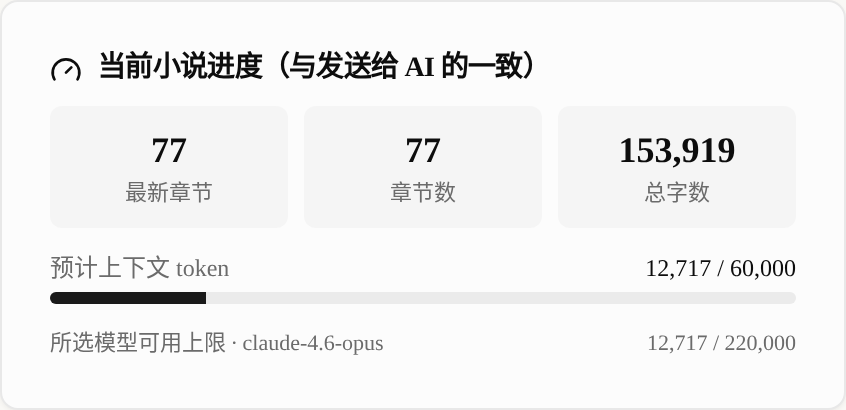
At the top of the panel is an “Estimated context tokens” progress bar, followed by the default cap of 60,000. It counts the overhead of your current assembly in real time, and red means it’s time to slim down. Further down is a line “Selected model’s available limit”, which carries the name of the generation model you’ve chosen: some models have small windows, and here it tells you in advance “it can’t hold this one”.
A simple rule of thumb: the upper bar compares against the “platform default cap”, and the lower line compares against “whether the model you chose can hold it”. If neither is red, send with confidence.
Step 2: Change “Full” to “Names only”
This is the most immediately effective way to save tokens. Scroll to “Assembly dimensions”, where settings, characters and suspense each have two levels: “Full” and “Names only”.
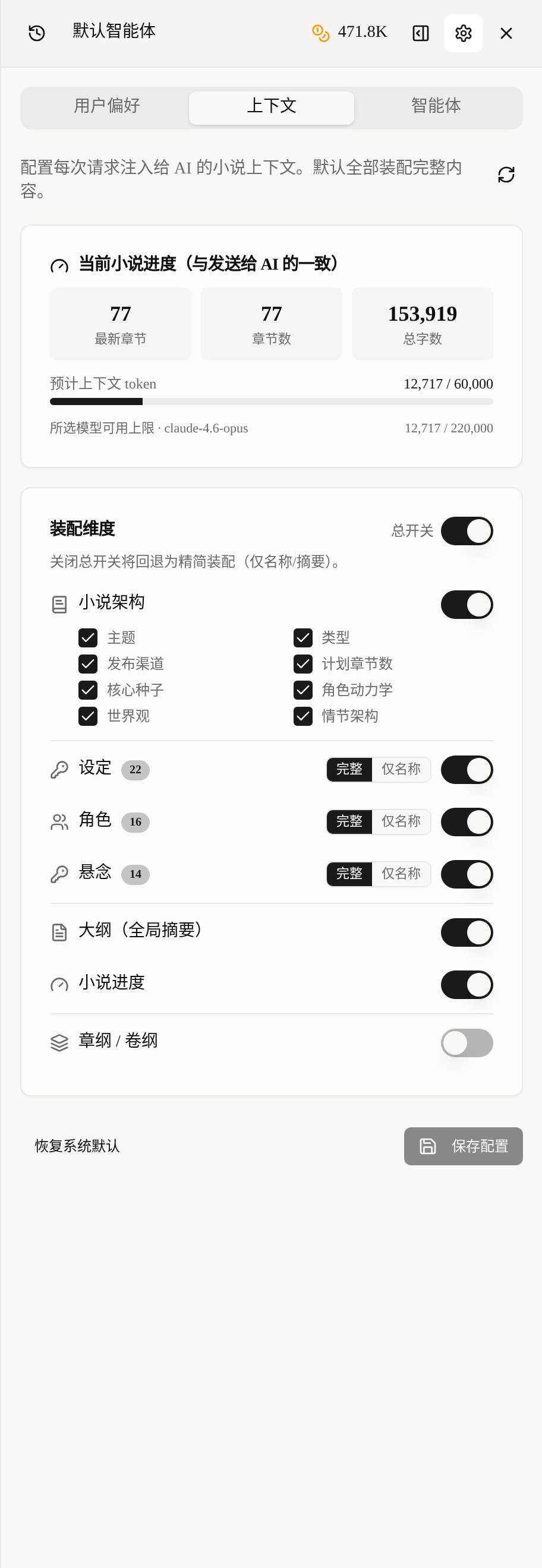
“Full” gives AI the entire item; “Names only” gives just the list of names, so AI knows “these things exist” without expanding the details. When writing everyday body text in bulk, use “Names only” for settings and characters: AI still recognizes the people and stays on track, while saving a big chunk of tokens.
The small number after each item (such as “Settings 22”, “Characters 16”) is this book’s current item count, to help you judge “whether loading it all would be too much”. At the top right there is also a “Master switch”; turn it off to fall back to the leanest “lean assembly”, which suits pure idea chats.
Step 3: Turn On Chapter/Volume Outlines On Demand, Not All by Default
Chapter and volume outlines are token hogs; they are off by default, and turning them on makes AI follow the outline strictly, but the overhead rises markedly. So it is “on demand”, not “always on”.

It has three assembly ranges: “This volume” gives only the chapter outlines of the current volume, “Last N chapters” counts N chapters back from the latest, and “Custom range” lets you enter a chapter interval by hand. Below there is also a checkbox “Also assemble the matching volume outlines”. The small badge next to the switch tells you how many chapter outlines and volume outlines were actually assembled this time.
Saving reminder: For routine expansion and transition chapters, you can turn chapter and volume outlines off entirely; turn them on only for key chapters where you want “AI to follow the outline strictly”, and prefer “This volume” or “Last N chapters”, rather than loading the whole book at every turn.
Three Practical Token-Saving Presets
No need to tune from scratch each time; just apply the three combinations below by scenario. These are the three levels we use most:
| Scenario | Settings / characters | Suspense | Chapter/volume outlines | Use for |
|---|---|---|---|---|
| Bulk body text (cheapest) | Names only | Off | This volume | Everyday chapters, transition chapters |
| Key chapters (play it safe) | Full | Full | Last N chapters + volume outline | Climaxes, turns, reveals |
| Pure idea chat (lightest) | Master switch off | Off | Off | Brainstorming, dialogue inspiration |
After changing, don’t forget to click “Save configuration” at the bottom. The configuration is stored per novel; set it once per book and it stays in effect long-term.
Our experience: Most chapters actually count as “everyday”, and the highlight chapters that really need “Full” are a small share. Set the default preset to “cheapest” and upgrade only temporarily when writing key chapters; over time the credits saved are considerable.
What Happens When Tokens Go Over? Over-Limit Protection
If your assembly pushes the estimated tokens past the default cap, the system protects you actively instead of silently charging. The progress bar turns red and a prompt appears asking you to turn on “Maximum context” in the chat settings.
If you don’t turn on “Maximum context”, the excess is automatically compressed and AI may “not see everything”, in which case the quality of what it writes will suffer. Likewise, if the “Selected model’s available limit” is exceeded, the line below also turns red.
When you see red, there are two remedies: either slim down the dimensions per the presets above (the cheapest preset usually brings it down at once), or switch to a model with a larger context. For how to choose a model, see the AI Model Selection Guide.
What Else Can Save More? Two Advanced Tricks
Trick 1: use visibility to “lighten” the context. Set settings you won’t need for a while, and foreshadowing that hasn’t reached its reveal volume, to “Hide from AI” or “Open progressively by volume”, and they won’t enter the context. That way, even with “settings full” on, what is actually assembled is just “the part that should be given now”, saving money and preventing spoilers. See Progressive Disclosure and Setting Visibility.
Trick 2: choose the right model. For the same task, the unit price and context window differ widely between models. Using a cost-effective model for everyday chapters and switching to a high-end model for key chapters is the more economical pairing.
Practical reminder: Saving tokens is a “combination punch”: smart assembly reduces input volume, visibility cuts items that shouldn’t be given, and model choice optimizes unit price. The three together beat compressing any one alone. Put it into your long-form framework, and the cost of a long novel is truly under control.
FAQ
Q: Will saving tokens make AI write worse?
No, provided it is “give on demand” rather than “delete at random”. For everyday chapters with “Names only”, it is enough for AI to know which people and settings exist, and it calls details as needed; only key turns need “Full”. Too much actually drowns the key points, and giving precisely often writes more focused.
Q: Can the default cap of 60,000 tokens be changed? If exceeded, must I turn on “Maximum context”?
60,000 is the platform’s default cap. If exceeded without “Maximum context”, the excess is automatically compressed and AI may not see everything; with it on, the window of the model you chose is filled as far as possible. We suggest first using the cheapest preset to bring the estimate back within the cap, and turning on large context only if you really need it.
Q: How do I know how many tokens this run actually cost?
Look at the “Estimated context tokens” progress bar at the top of the panel; it estimates in real time before sending and compares with the default cap. The “Selected model’s available limit” line below also tells you whether the current model can hold it. If neither is red, send with confidence.
Q: Should I turn on chapter/volume outlines?
On demand. They make AI follow the outline strictly, but are token hogs. Turn them off for routine expansion and transition chapters; turn them on only for key chapters, and prefer “This volume” or “Last N chapters”, not the whole book.
Q: Is the configuration global or per book?
Stored per novel. A token-saving preset you set for one book applies only to that book, and a different book must be configured again. Remember to click “Save configuration” after changing, otherwise next time you come in it is back to the default full assembly.
Final Words
The bulk of AI writing credits is spent on “reading material”, and how much material is read is in your hands. Understand the token estimate, change “Full” to “Names only”, and turn on chapter/volume outlines on demand: three steps bring the cost down by a big margin.
Stack on visibility to lighten the load and the right model choice, and saving tokens becomes a reusable combination punch. Go to the context assembly tutorial now and set a default preset for your writing rhythm, so every credit is spent where it’s really needed.