
AI Novel Covers and Character Portraits: A 3:4 Cover in a Minute
Character-card prompts for one-click 3:4 covers, batch portraits and setting illustrations, plus the current model, matching tips, limits and refunds.
In this article 7 sections
Open any book marketplace, and the cover is one of the first things readers see. Without an effective cover, a title and blurb have a harder time building recognition in a card list. Platforms’ size requirements aren’t entirely the same; what Maliang Writer currently generates is the common 3:4 vertical image, and before the official listing you still need to crop and check the text area to the target platform’s requirements.
But here’s the problem. Commissioning an illustrator costs a few hundred yuan for a single cover at the least, portraits cost more, and a full set of character art blows the budget. Doing it yourself with an AI image tool? Learning the prompt syntax for Midjourney or Stable Diffusion takes days of fiddling, and the results often don’t match the character settings: your protagonist clearly has black hair, and AI draws a handsome blond. Even more annoying, with many characters it’s hard to guarantee a consistent style, the protagonist looking like anime and the supporting characters like oil paintings, a jarring mix side by side.
There’s also a hidden cost many people overlook: every time you change a character setting, the matching portrait has to change too. With an outside tool, you re-tune the prompt, regenerate and recompare, and half a day is gone in one round. In Maliang Writer, after updating the character card you just regenerate; the prompt is assembled on the fly from the fields, so changing the setting is changing the prompt, and the loop is very short.
Maliang Writer’s newly launched AI cover and character portrait feature aims to fix this gap: the system automatically reads the appearance fields you maintain in the character card to assemble the prompt, you don’t write a line of prompt yourself, and a few clicks turn settings into images. This tutorial covers cover generation, batch portraits, model choice and how to make portraits look more like the character, all in one go.
Key Points
- Three capabilities: one-click 3:4 vertical cover generation, automatic portraits from character cards, and illustrations for setting entries.
- The system automatically reads the structured appearance fields of the character card to assemble the prompt; users don’t need to write prompts by hand.
- The model currently online is gpt-image-2 at 400 credits per image (subject to the in-site live quote); unstable models have been taken offline temporarily.
- Portraits support batch generation and a unified style, a single failure can be retried individually, and tasks not yet started are not charged if you cancel midway.
What Images Can AI Make for You?
Three capabilities, each with its own scenario.
First is the novel cover. Click once, and in usually about 40 to 70 seconds you get a 3:4 vertical cover image, and “Set as cover” takes effect instantly. 3:4 is the proportion of current mainstream marketplace cards, so you needn’t worry about size; the system generates to this ratio directly.
Second is the character portrait. In the editor’s settings sidebar, select a character, and the system reads the structured fields in the character card, such as appearance and personality, and assembles the prompt to generate the portrait. You don’t write prompts like “black-haired youth in red” yourself: you’ve long since maintained that information in the settings, and the system translates it into an image for you.
Third is the illustration for setting entries. Want a picture for an item or scene in your worldbuilding settings? It can be generated too, so the setting document is more than text.
The logic behind the three capabilities is shared: the structured settings you’ve already maintained are the best prompt material. For how to write character cards and fill in the appearance fields, see Immersive Novel Worldbuilding; the image quality of covers and portraits depends largely on how detailed these fields are.
How Do I Generate a Cover? Step by Step
Start with the cover, because it is the most urgent need: the book is about to be listed, so where will the cover come from?
The entry is on the novel list page. Find the book without a cover, hover over its card, and an “AI Generate Cover” button pops up in the top right; click it to enter the generation dialog.
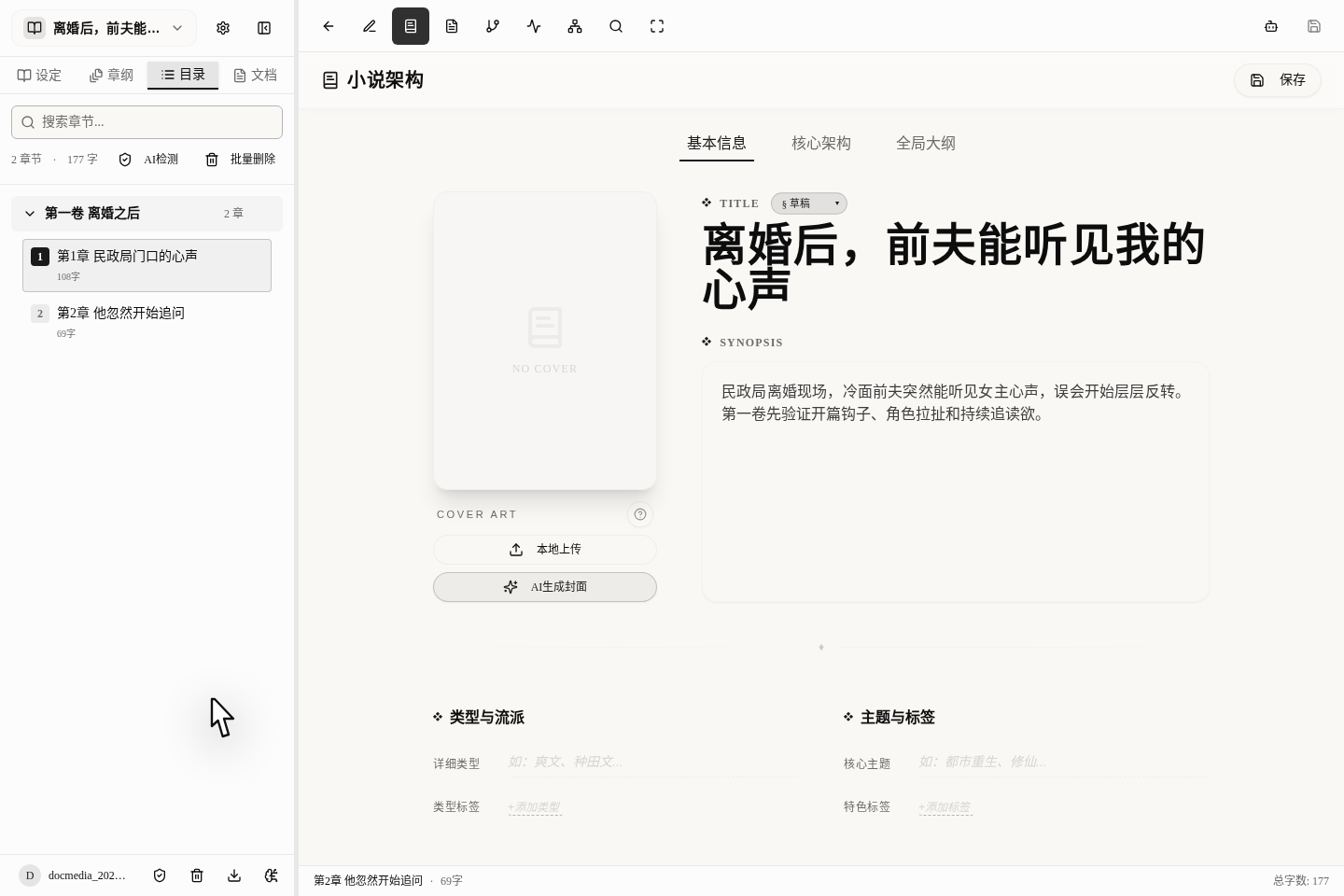
In the dialog you can choose the model and style and fill in a cover scene description. The current channel only offers pure text-to-image, with reference-image editing temporarily off; the clearer you write the characters, background, composition and the area you want left for the title, the more controllable the result.
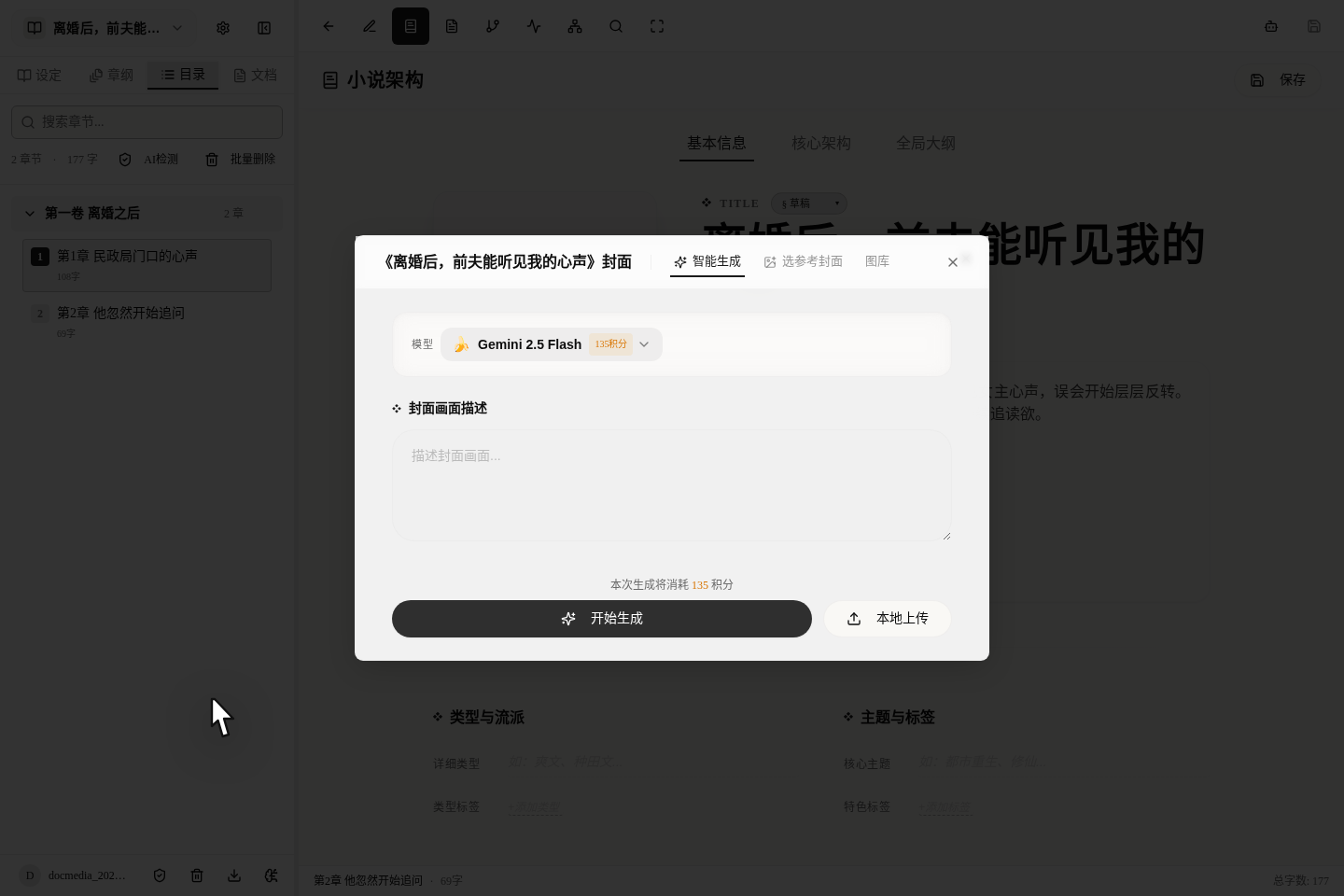
After confirming, wait about 40 to 70 seconds and the image appears. If you’re satisfied, click “Set as cover”, and the cover slot on the novel card updates immediately. If not, adjust the scene description or style and generate again. For how much the cover matters at submission and listing, read it together with the Web Novel Publishing Guide.
How Do I Batch-Generate Character Portraits?
Portraits are another high-frequency need, especially for ensemble novels with many characters. Generating one at a time is tedious, and Maliang Writer supports batches.
The flow goes like this: in the editor’s settings sidebar, multi-select the characters you want portraits for; you can select all or just a few main characters. After selecting, click “Batch generate portraits”, and a unified settings panel pops up: choose a model and a style, and the panel shows the total credit estimate so you know before you order.
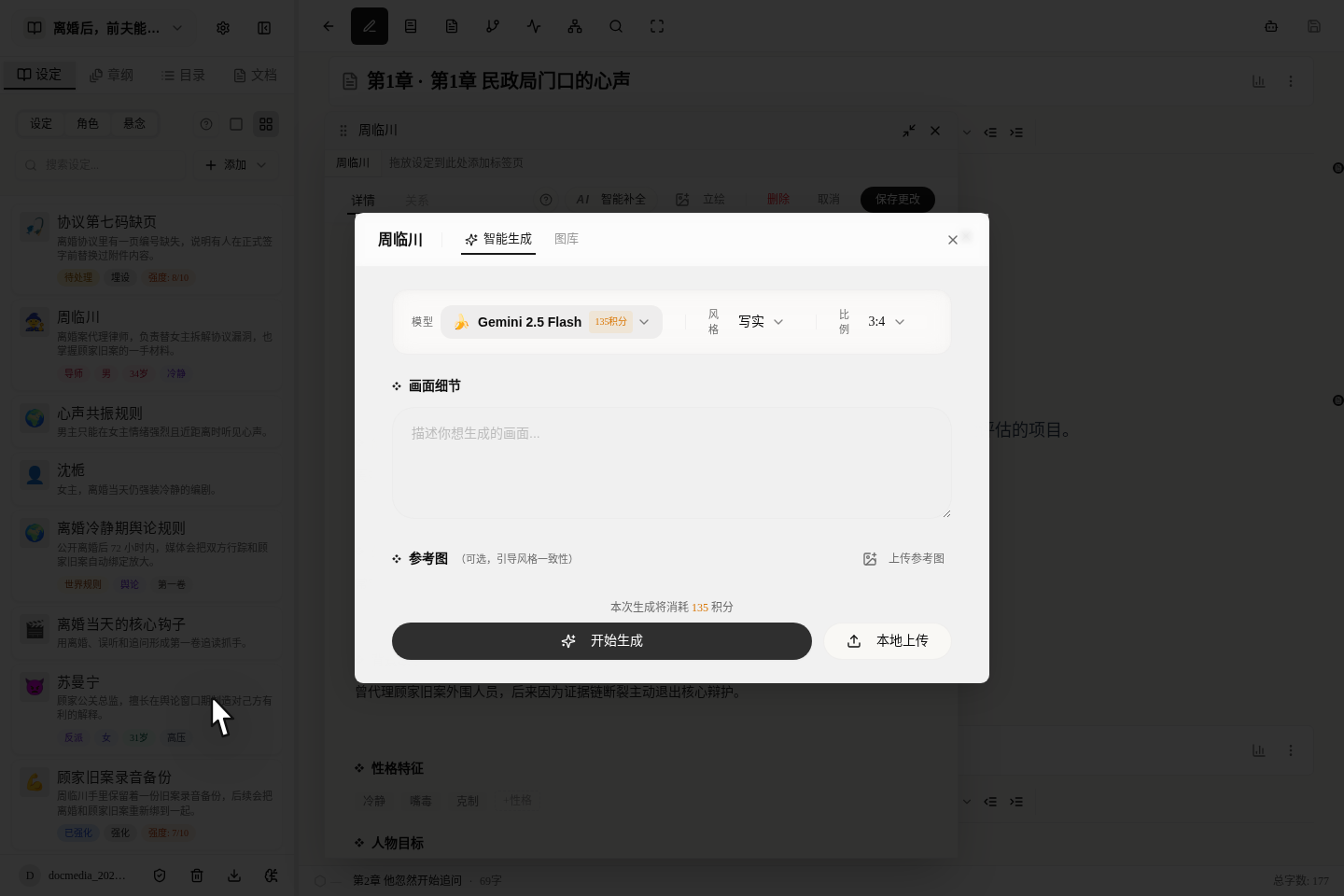
After confirmation the system generates them one by one, lighting up each as it finishes. The upside is that a single failure doesn’t sink the whole batch: if one character’s image comes out broken, click retry on that one alone, with no need to redo everything. You can also cancel midway; those already generated are kept, and those not yet started are not charged.
A practical suggestion: for the portraits of one book, be sure to use the same model and the same style. Otherwise, if the protagonist in chapter one is anime-style and the supporting characters realistic, readers will think you’re running a crossover. Batch generation naturally unifies the style, far less hassle than tuning one at a time. For keeping many characters organized, see the Novel Character Development Guide.
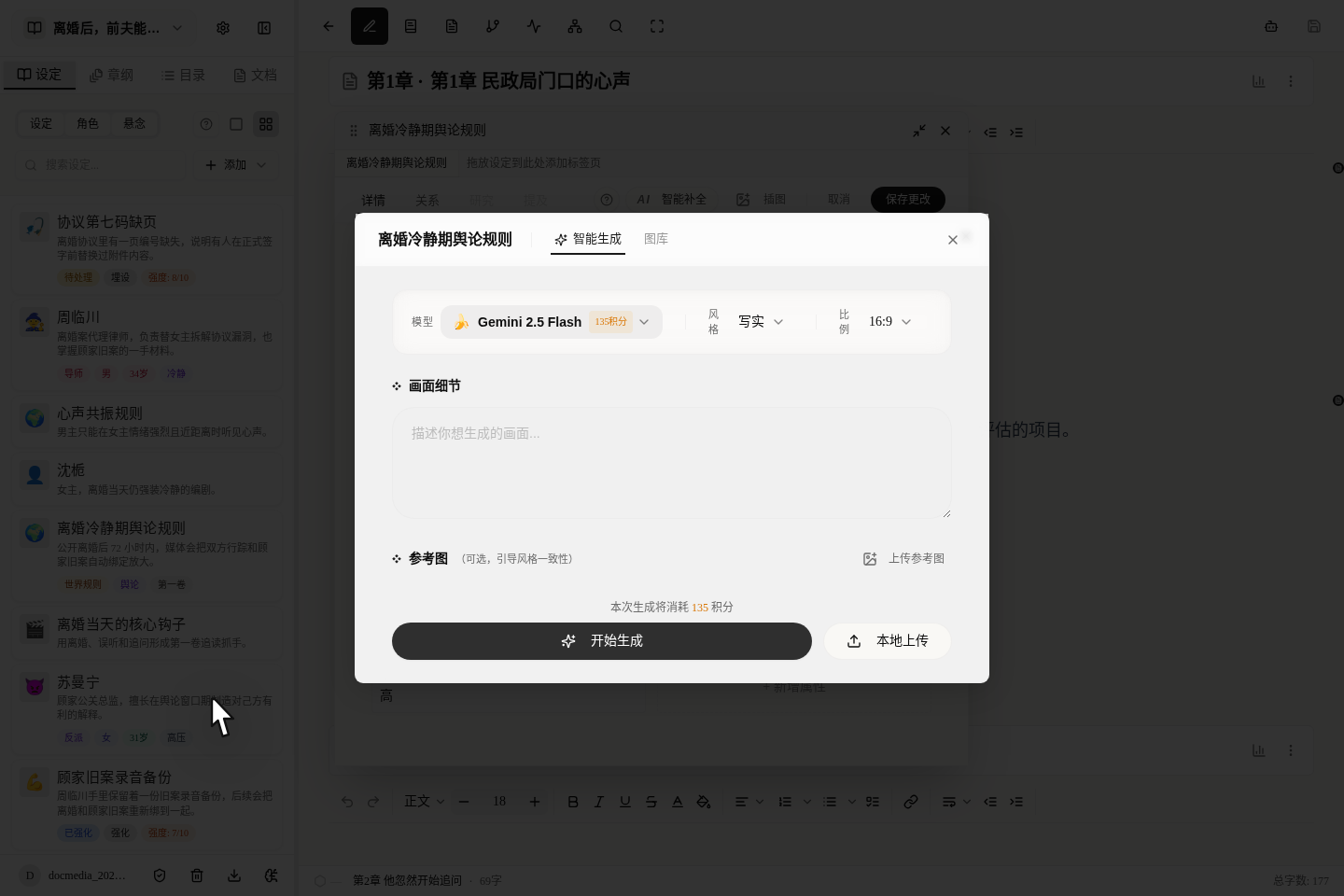
The entry for setting-entry illustrations is similar: trigger the generation dialog from the action menu of a setting entry.
Models Currently Online
Currently only gpt-image-2, which passed stability verification, is open; models on other channels that are unstable have been taken offline temporarily. 400 credits per image, and recent tests show most finish in 40 to 70 seconds; prices and limits are still subject to the live quote in the generation dialog.
| Model | Credits / image | Speed | Suited for |
|---|---|---|---|
| gpt-image-2 | 400 | Usually about 40–70 seconds | Covers, character portraits, setting illustrations |
How to Make Portraits Look More Like Your Characters?
The most common problem with portraits is “what’s drawn is different from what I have in mind”. That is really not the model’s fault; more often the appearance fields in the character card are too vague.
The system reads your character card fields to assemble the prompt. If you write “long black hair, wears red”, the system can only translate that little information, and of course what’s drawn is a generic person in red with black hair. But if you write “black shoulder-length hair, a silver hairpin on the left temple, a dark-red stand-collar long robe, a black leather belt at the waist, cold-leaning eyes, fair skin”, the details the system can assemble are far richer, and the image naturally fits what’s in your mind.
Put plainly, whether a portrait looks right depends eight-tenths on how detailed your character card is. The detailed filling-in method for these fields is in Immersive Novel Worldbuilding, and it’s worth ten minutes to maintain them well.
A few more practical tips. Don’t skimp on clothing details: the more specific the material, color, style and accessory placement, the steadier the image. For example, “a white cross-collar long skirt, silver cloud patterns embroidered on the cuffs, a jade-green silk cord tied at the waist” is far more useful than “a white skirt”. Expression and posture can be written in too; if the character card has a personality trait field, the system reads that as well: “cold and unsmiling” and “cheerful, energetic girl who loves to laugh” produce completely different temperaments. If a character has an obvious signature object in the book, such as a weapon of a particular shape or a spirit pet, be sure to write it clearly in the settings; it’s often the strongest visual anchor.
A word on cover composition too: 3:4 vertical is the mainstream marketplace card ratio, and the system already generates to this ratio. For composition, putting the protagonist or core visual element in the upper two-thirds usually works better, because the card’s bottom overlays the title and tags, and a too-full image is easily covered. Of course this is only a suggestion; generate a few and pick the one that looks best.
How Many Can I Generate a Day? Am I Charged for Failures?
Daily limits follow the membership tier: free users can’t generate for now, but the entry is visible and clicking it guides you to upgrade; Basic members get 30 per day; Advanced members get 100 per day; the Pro tier is unlimited. For the difference between free and paid, see the full explanation in Maliang Writer Free vs Paid.
The refund rule is reassuring: a failed generation is refunded in full automatically. You don’t have to apply manually; the system refunds when it detects a failure, so you needn’t worry about spending money and getting no image. In batch generation, canceling midway charges only for what’s completed, and nothing for what hasn’t started.
Honestly, this refund mechanism is what makes people dare to experiment. AI image generation has randomness by nature, and running the same parameters twice can give quite different results. With failures not charged, you can adjust the scene description and style and retry without feeling the pinch of credits at every click. Especially with batch portraits, when a dozen-plus characters are generated together, two or three that break midway can be retried individually.
FAQ
Q1: Can free users use AI covers and portraits?
Not for now. Free users can see the entry, and clicking it guides them to upgrade. Basic members can generate 30 per day, Advanced 100, and the Pro tier is unlimited. The in-site live limit is authoritative.
Q2: Will I be charged credits if generation fails?
No. The system automatically refunds in full once it detects a failed generation, with no manual application. If you cancel midway in a batch, completed ones are not refunded and ones not started are not charged.
Q3: Can I upload a reference image to guide the style?
The current channel’s reference-image editing has not reached launch stability standards, and the entry is temporarily closed; covers and portraits are for now generated from text descriptions and character card fields.
Q4: How do I unify the portrait style across one book?
In batch generation you can fix the same model and style to reduce visual drift between characters. We suggest first generating a few drafts with a fast model to settle the direction, then refining the protagonist and the core cover; even with identical parameters, check character features and the overall look manually.
Q5: Can generated images be used for submission without checking?
Not recommended. Before submitting, check the title text, character features, platform size and any odd details, and confirm that the reference material and the target platform’s current rules allow use. AI output is a design first draft, and final publishing responsibility remains with the user.