
AI Revision Gone Wrong? Undo a Round, Branch, or Resend
Undo a bad AI revision in Maliang Writer: back up first, compare changes, then undo a round, branch, or edit and resend. Key limits explained.
In this article 8 sections
The Conclusion First: Back Up Before Editing, Look at the Diff After, and Undo in Layers If You’re Not Satisfied
Having AI revise is fast, but after it finishes, just reading the new version often won’t reveal the problems: a foreshadowing sentence has been “polished” away, a character’s catchphrase has been reworded, a passage of dialogue has been turned into a summary. It reads smoothly, but it is no longer your original.
A safe process has three steps:
- Back up before editing: save a version, and state the revision request clearly;
- Look at the diff after editing: don’t look at the result, look at the changes;
- Undo in layers: revert one by one where you can, and undo the whole round only if you’re unhappy overall.
Before Editing: Back Up, and Limit the Scope
- Save a version first. Use your writing software’s version history, or copy the original and save it elsewhere. Don’t have AI edit directly on your only copy.
- Limit the revision scope. The vaguer the revision request, the more the AI changes. Instead of “polish this chapter”, better phrasings are:
- “Change only the dialogue, leave the narration alone”;
- “Only delete repetition and stock phrases, don’t add new content”;
- “Don’t change plot, character names or numbers”;
- “Keep these original lines: ...” (foreshadowing lines, catchphrases, key lines of dialogue).
- Change one thing at a time. Changing pacing first and then dialogue is easier to check than asking for “overall optimization” in one go.
Three commonly used revision requests you can apply directly:
Tighten: Delete repetition, stock phrases and sentences that draw conclusions for the reader, add no new content, and don’t change plot, character names or numbers.
Dialogue: Change only the dialogue so each character sounds more like themselves (with the character’s way of speaking attached), and don’t touch a single word of the narration.
Pacing: This passage drags; compress it to about two-thirds of its original length, keeping these original lines: ...
Writing “what not to do” in the request controls the scope of change better than writing “what to do”.
After Editing: Don’t Just Read the New Version, Look at the Diff
Use a comparison tool to view the original and the new version together, with deletions and additions each marked in a color. If you have no dedicated tool, Word’s “Compare Documents” or an online text-comparison tool will do. When looking at the diff, check item by item:
- Whether facts changed: names, forms of address, numbers, times, places;
- Whether foreshadowing was lost: whether the line that plants foreshadowing is still there and whether its meaning changed;
- Whether character voice changed: catchphrases, the length and tone of speech;
- Whether anything was added: summary sentences (“At this moment he finally understood...”), stacked adjectives, narration explaining a character’s psychology;
- Length change: if you asked for cuts and it got longer, that usually means the AI added explanation.
Decide One by One: Keep, Revert, or Edit Again Yourself
After looking at the diff, decide one by one; there are only three ways to handle each:
- Keep: clearly better, or it fixed an error;
- Revert: it changed facts, lost foreshadowing, changed a character’s voice, or merely reworded without being better;
- Edit it yourself: the direction is right but it doesn’t go far enough. In that case don’t have the AI go another round; doing it yourself is often faster.
A practical rule of thumb: if you’re unsure, revert first. The original is what you wrote, and you know why every sentence is there; the AI’s changes don’t have that context.
Common Kinds of Change, and How to Judge Them
- Original: “He said nothing and set his sword down on the table.” After: “He was silent for a moment, set the long sword heavily on the table, a flicker of complexity crossing his eyes.” Description and psychological explanation were added, and the original’s restraint is gone. Suggest reverting.
- Original: “You’re here.” After: “You’ve finally come. I’ve waited a long time for you.” The character originally spoke little, and after the change became a different person. Suggest reverting.
- Original: “Three days later, they reached Bluestone Town. It was raining in town that day, raining hard.” After: “Three days later, they reached Bluestone Town through the rain.” The repetition was removed, and the facts are unchanged. Can keep.
- The original has a seemingly redundant line “His old wound on his left hand ached again”, and the after version deleted it. If this is foreshadowing, you must revert it. That’s why telling the AI your foreshadowing lines before editing matters so much.
- The edit added a plot passage not in the original, such as a passerby striking up a conversation. Unless you really need it, revert. When AI adds plot, later chapters may not connect to it.
Undoing: Local Reverts and Whole Rollbacks
- Unhappy with part of it: reverting one by one is enough.
- The overall direction is wrong: go straight back to the version saved before the revision and make a new request, which is less trouble than patching the ruined version.
- Want to try two ways of writing at once: copy the chapter, try the other way of revising on the copy, and compare and choose at the end.
How to Do It in Maliang Writer
Maliang puts “look at the diff, decide one by one, undo” into the editor and the chat.
1. Review one by one in the editor. In body text and documents the AI has changed, changes are marked directly on the original: deletions struck through, additions marked green. “AI Edits Pending Review” appears at the top of the body text, showing how many changes this chapter has, and you can jump with “Previous” and “Next”; beside each change are “Keep” and “Revert”, and you can also “Keep All” or “Revert All”, and click “End Review” when done. Reverting is ordinary editing, and Ctrl+Z can undo that revert.
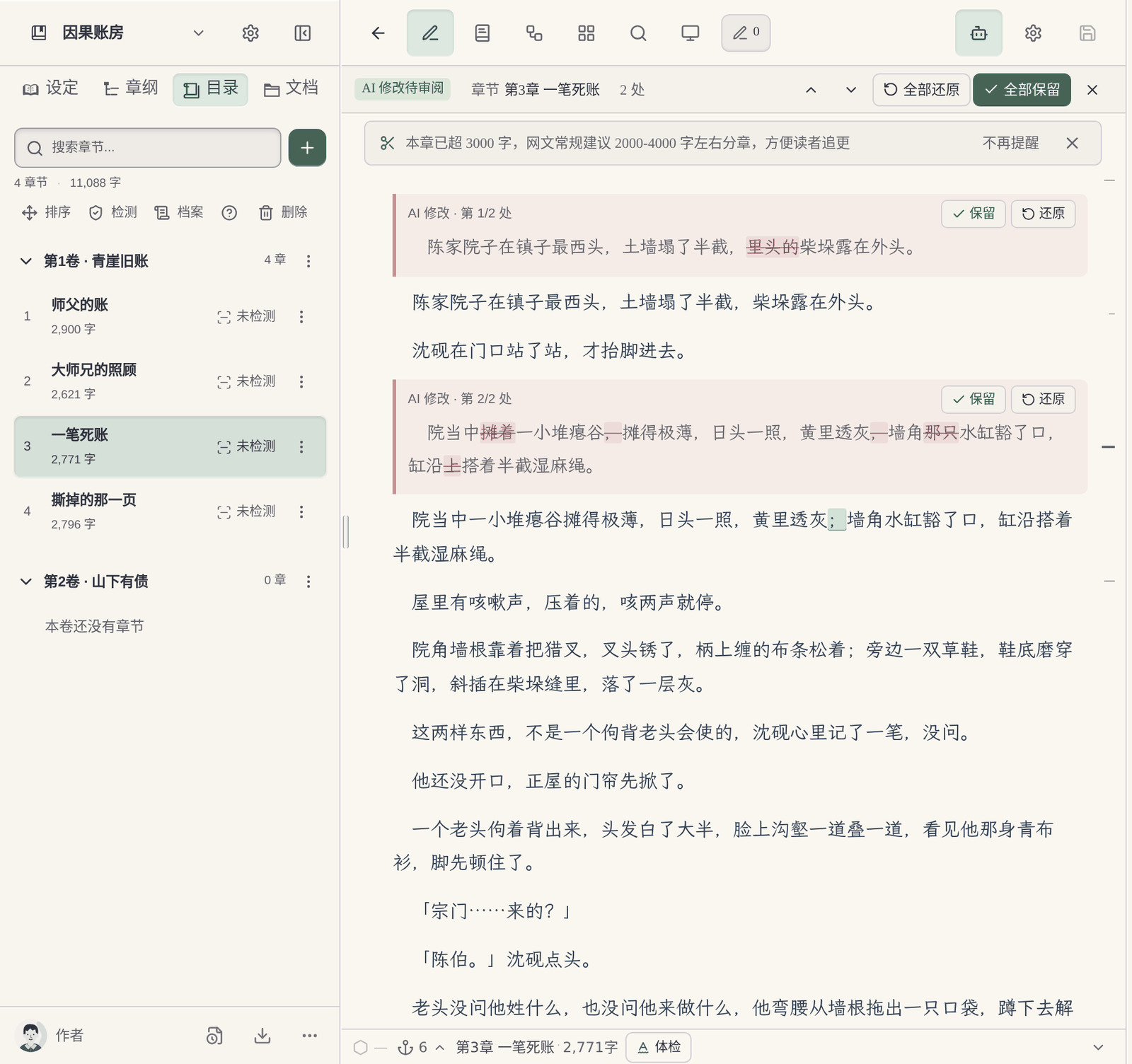
A few things to know: the one-by-one review applies to body text and documents, and story archives don’t go through this process; several changes that sit very close together are merged into one; format-only changes don’t count as changes; when one passage changes a lot, it shows as a whole passage deleted plus a whole passage added.
2. See the changes in the chat. The chapters, characters and settings the AI changed in this round are listed in the chat’s tool card, and clicking “View Changes” lets you see three tabs: changes, before, after. To roll back just one of the steps, use “Undo This Step”; if the same spot has had new changes after that step, it may not be possible to undo.
3. Undo this round, branch the chat, edit and resend. Under every message you send there are three actions:
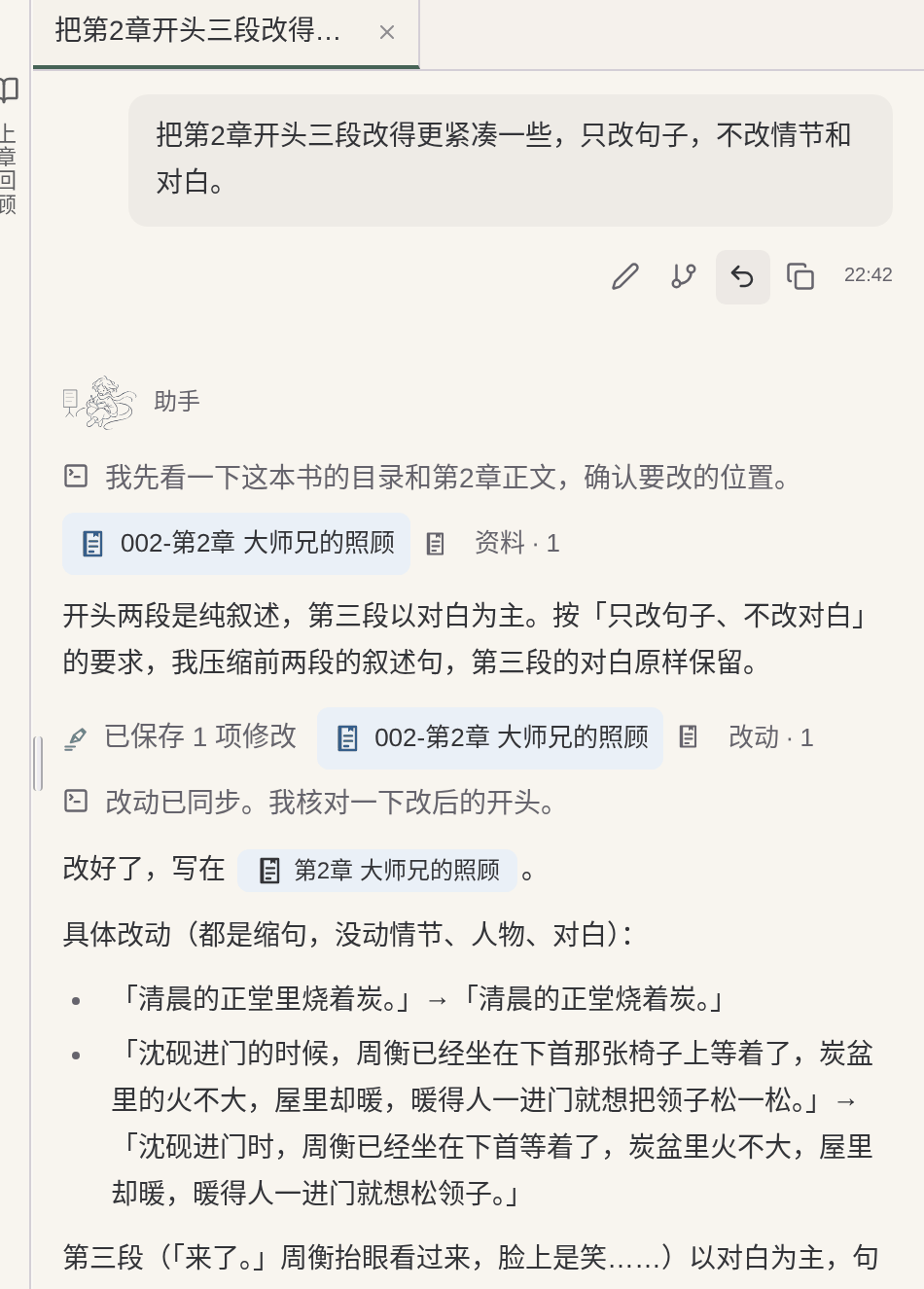
- Undo This Round: the manuscript is restored to the state before this message was sent, including what the AI and the tasks it arranged wrote.
- Branch From Here: starts a new chat from before this message to try again.
- Edit and Resend: first restores the manuscript, then sends your edited message. Suited to cases where “the request wasn’t clear enough just now”.
Before using them, remember these boundaries:
- Undo This Round also reverts any manual edits made in the meantime. If you manually changed a few sentences after the AI finished and want to keep them, save those sentences separately first.
- Story archives organized in the background don’t roll back with a whole-round undo. If after the undo the archives don’t match the body text, you can have the AI re-organize the corresponding chapters.
- Credits already used are not refunded. The chat history is kept.
- The round that starts a workflow can’t be undone as a whole round. Before having the AI start a workflow, we suggest first saving a version in the chapter’s version history.
- A branch and the original chat share the same manuscript. A branch only opens a separate chat, and does not save a separate copy of the manuscript: if in the branch you have the AI change chapter 5, then when you return to the original chat, chapter 5 is also already in its changed form. To keep both ways of writing for comparison, first copy the chapter or save a version in the chapter’s version history; see How to Recover Overwritten Novel Text.
For paragraph-by-paragraph comparison before and after a rewrite, see also How to Compare an AI Rewrite Against the Original.
FAQ
Q: For a draft the AI has revised, how do I see exactly what it changed?
Put the original and the new version into a comparison tool, with deletions and additions marked in separate colors. In Maliang Writer, body text the AI has changed shows deletions and additions directly in the editor, and in the chat card you can also open a before-and-after comparison.
Q: How do I recover if an AI revision went wrong?
If part of it went wrong, revert one by one; if the whole thing went wrong, go back to the version from before the revision. In Maliang Writer you can undo this round, and the manuscript is restored to before this message was sent (except for the round that starts a workflow).
Q: Can I keep only part of what the AI changed?
Yes. In the editor’s review mode, changes can be kept or reverted one by one, and if you’re unsure, we suggest reverting first.
Q: After undoing this round, is what I changed by hand still there?
No. Undoing this round restores the manuscript to before this message was sent, and manual edits made in the meantime are reverted along with it. For manual edits you want to keep, save a separate copy before undoing.
Q: Is branching from before this round the same as saving a separate copy of the manuscript?
No. A branch and the original chat share the same manuscript; only the chat is opened separately. To keep two versions at once, first copy the chapter or save a version in the version history.
Q: Are credits refunded after an undo?
No. Credits already used are not refunded, and the chat history is kept.
Q: Do story archives roll back with the undo?
Archives organized in the background don’t roll back with a whole-round undo. If after the undo the archives and the body text are inconsistent, you can have the AI re-organize the archives for those chapters against the current body text.