
Hide Settings and Open Them by Volume: You Control What AI Sees
Don't want AI spoiling the culprit or the final twist? Hide settings, characters and suspense from AI, or open them volume by volume. In Volume 1 the AI sees only the surface identity; the truth behind it unlocks in Volume 3. Single-item and batch demos included, so every reveal lands on cue.
In this article 6 sections
When you reach a key twist, you certainly don't want AI to blurt out the identity of the mastermind ahead of time; some foreshadowing has to wait until Volume 3, and the earlier chapters must never let AI know about it. Setting visibility is made for exactly this: you can hide a single setting, character or suspense item from AI completely, or let it open up to AI gradually, "by volume".
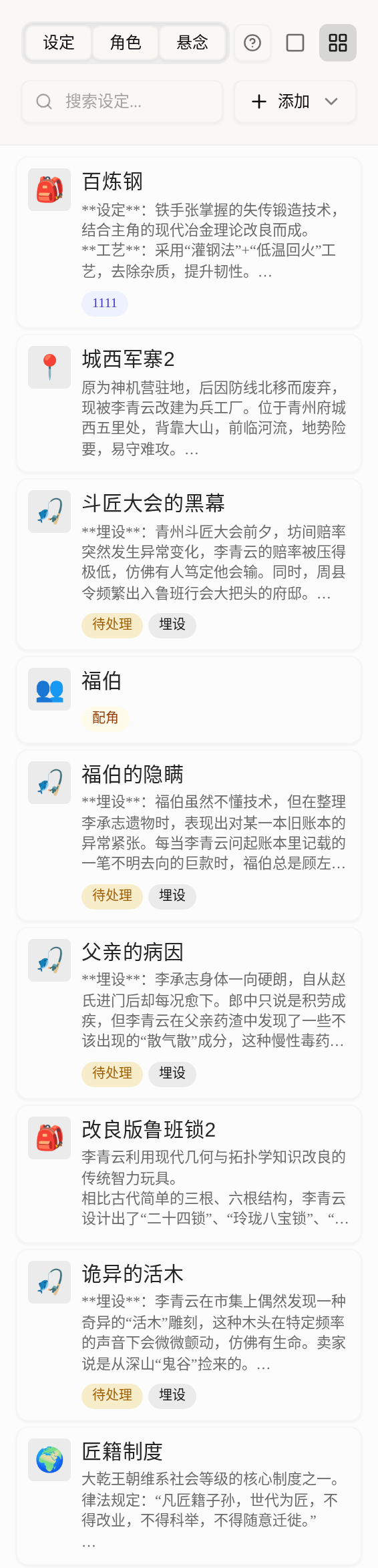
These switches are tucked into the reference sidebar on the left of the writing page. Click Settings at the top and you will see the settings, characters and suspense of the current book.
Setting visibility for a single entry
Open any setting (characters and suspense work the same way), scroll down in the detail card and find the ❖ AI visibility block.

There are two switches here:
Hide from AI: once on, this entry is not assembled into any AI context. Even if "Settings" is turned on in context assembly, the hidden entry is skipped. It is the place for things that must never be spoiled: the true culprit's identity, the final ending, a hidden cheat ability.Open progressively by volume: once on, this entry is normally invisible to AI, and is unlocked for AI automatically only when your writing progress reaches the volume you specify.
How to use progressive opening by volume
After you turn on Open progressively by volume, all the volumes of this book are listed below so you can tick Start volume.
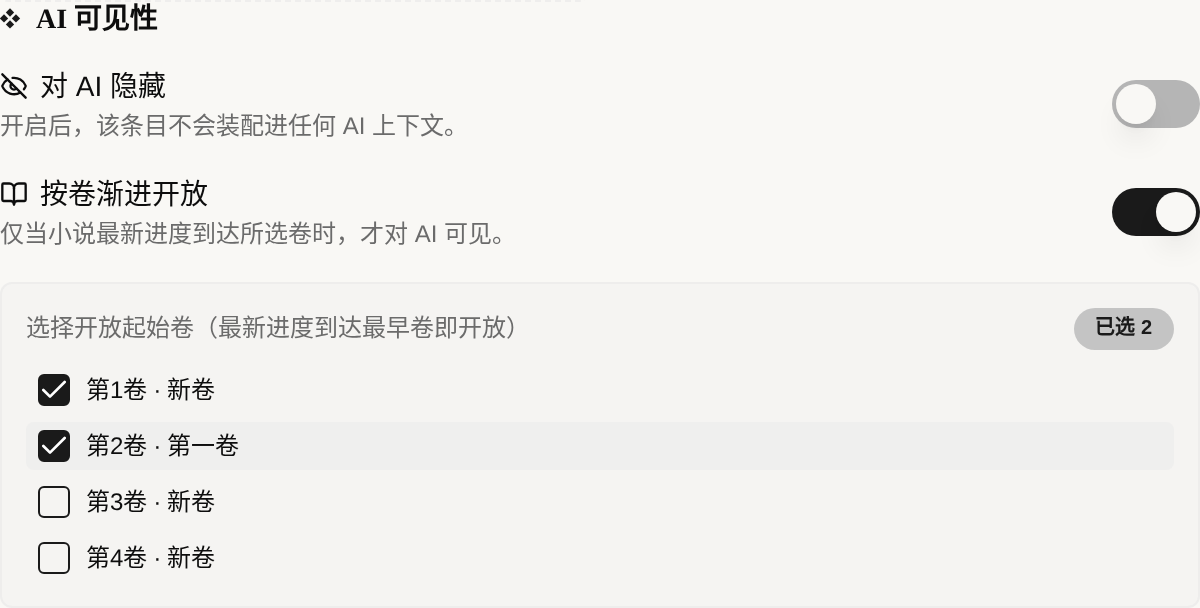
To understand the logic, remember one sentence: what you tick is "from which volume it becomes public". When your writing progress reaches the earliest volume you ticked, this setting automatically becomes visible to AI.
An example: you tick Volume 2 for "the heroine's true origins". While you write Volume 1, AI knows nothing about it and cannot leak it early; once you reach Volume 2, this origin setting automatically enters the context and AI starts writing according to it. No spoilers, and no need to flip the switch by hand every volume.
The 2 selected at the top right counts how many volumes you ticked. If you tick none, the entry stays hidden — the panel also reminds you of this in orange text below.
What the little badge on the card means
Cards with visibility settings show a small badge in the top right corner:
- A crossed-out eye icon: this entry is
Hide from AI - An open book icon: this entry is
Open progressively by volume
A glance at the sidebar tells you what is hidden from AI, without opening entries one by one.
Changing many at once: batch visibility
To handle many entries in one go, click the multi-select icon at the top right of the sidebar to enter multi-select mode, tick the cards to process, and an AI visibility batch toolbar appears above.
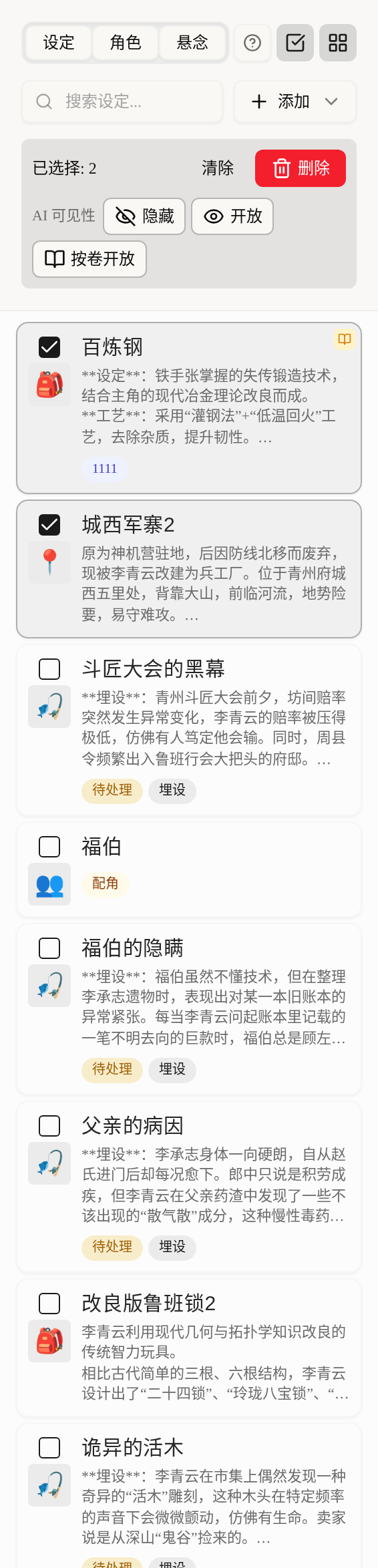
There are three buttons:
Hide: hide all selected entries from AIOpen: make all selected entries visible againOpen by volume: after clicking, choose the start volume and set progressive opening for all selected entries at once
When you tidy up the foreshadowing ledger of a volume, this is far faster than clicking one by one.
How it relates to context assembly
The two work together; just remember this priority: visibility is the "red line", context assembly is the "quota".
- Context assembly decides "whether to give this category of material and how much" (for example, full settings or names only).
- Setting visibility decides "whether this specific entry may be given".
Hidden entries, or entries whose opening volume has not been reached, never enter the context no matter how context assembly is set. So feel free to turn on "full settings" in assembly, and leave the real spoiler points to visibility as the safety net.
What to read next
Once you control "what AI gets to see", continue with: