
Keep Characters From Forgetting and Settings From Contradicting
Use the knowledge graph to catch forgotten settings and continuity errors and check consistency, so a 300,000-character novel stays on track.
In this article 10 sections
What most often brings down a long novel is not the prose, but characters, rules and plot starting to contradict one another (continuity errors). The knowledge graph exists to solve this: it turns the information in the main text you have written, your character cards and your setting cards into a searchable web of relationships, so that AI is steadier when it helps you write later.
First, understand what it is for: it records facts, it does not polish
Take a premise like "After the Divorce, My Ex-Husband Can Hear My Thoughts". The easiest things to get wrong further on are:
- Who exactly already knows the secret that "her thoughts can be heard"?
- Are the leads now estranged, testing each other, or already reconciled?
- Has some key piece of evidence or foreshadowing actually been mentioned earlier?
What the knowledge graph does is turn this information from "what you roughly remember" into "facts the platform has really recorded".
How to open this feature
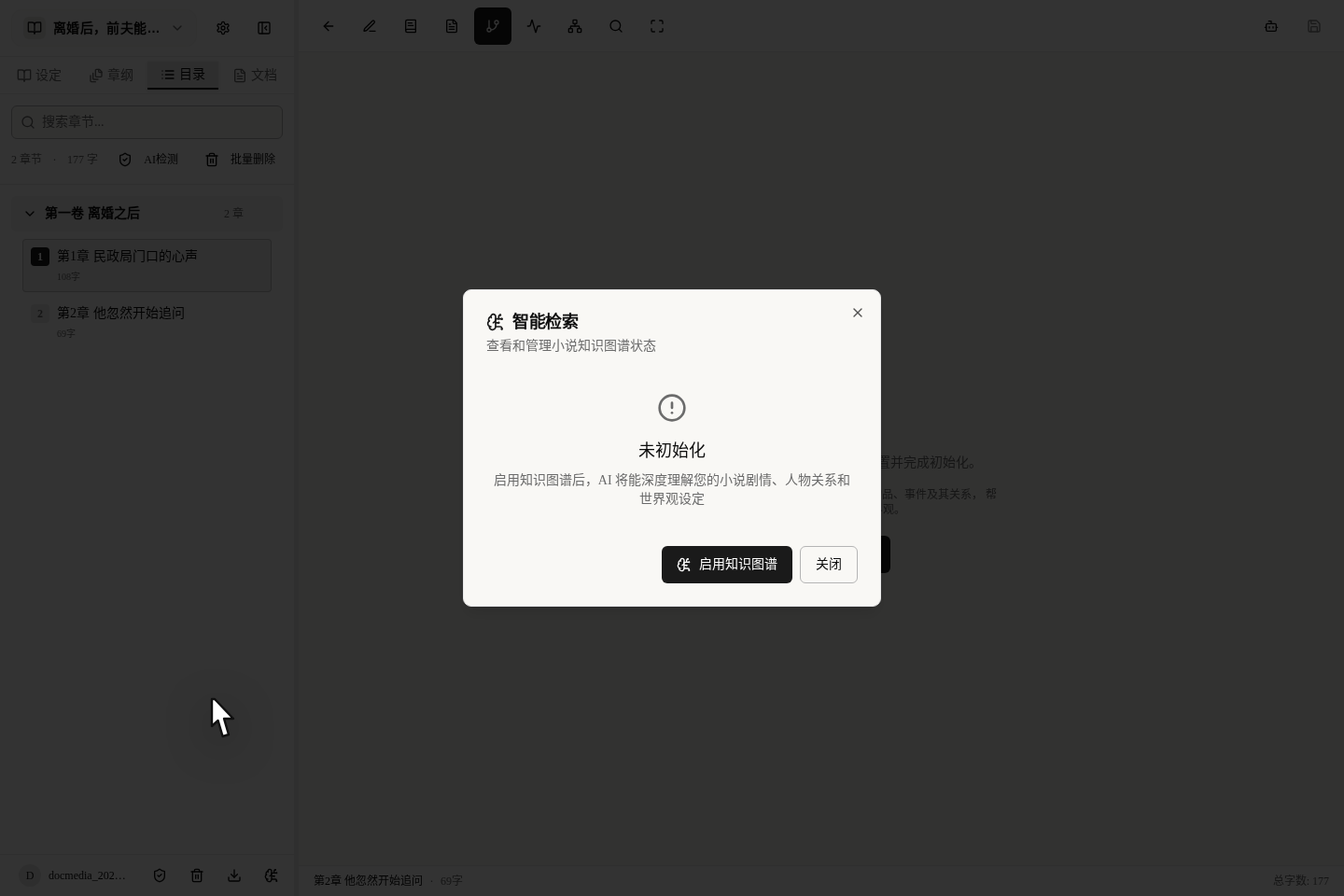
Knowledge Graphat the top of the writing page: for when you are writing and want to switch over for a quick look at the relationship graph.Smart Searchon the left of the writing page: for checking how far the graph has been built and whether syncing has finished.
Both places end up using the same thing; they are not two different features.
What to do the first time
The first time, we suggest this order:
- First write at least 1 or 2 chapters of main text.
- First create cards for the most important characters and settings.
- Click
Knowledge Graphat the top; if it is not enabled yet, it will prompt you withOpen RAG Settings. - When the dialog appears, click
Enable Knowledge Graph. - The platform first works out how many credits it will cost, then starts building the graph.
- If it is still building or has failed, click
Refresh Statusto check progress; don't keep closing and reopening it. - If you find a few chapters were missed in syncing, use
View DetailsandCatch-up Syncto fill them in.
Never turn it on right away when you have written nothing. If the book has no main text and no characters yet, the graph has nothing to record.
What happens after you turn it on
After it is on, you will see these states:
Not Initialized: the graph has not started building.Building: the platform is extracting information from your main text and material cards.Partially Initialized: it is already usable, but a few chapters have not finished syncing.Ready: everything is done and you can use it freely.Failed: see what went wrong, then try again.
You can also:
- Choose
Auto SyncorManual Sync. - See which chapters have not been synced in yet.
- See how many credits have been used.
What it looks like once built
The picture below is not drawn at random; it is a real knowledge graph generated from a book that has been finished. Once your own book's graph is built, it will look much like this.
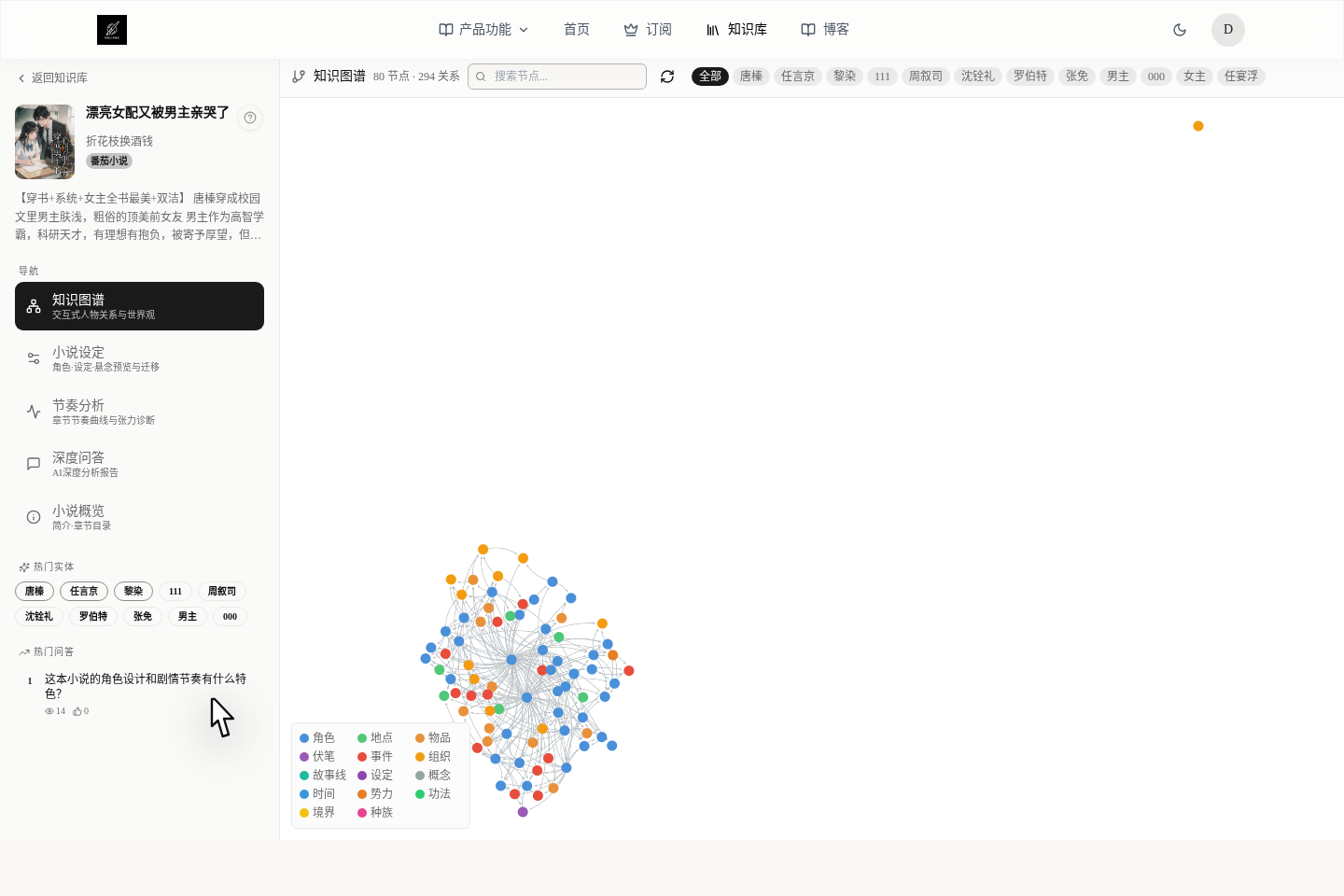
At this point its biggest use is not "looking cool", but helping you do these three things:
- Before AI continues writing, have it check the earlier settings so it doesn't make things up.
- After you finish writing, see whether characters, places and rules contradict one another.
- When you find something written wrongly, go straight back to the character card, setting card or main text to fix it.
The best thing about the graph is that it jumps straight back to material cards
This graph is not a dead picture; it is more like a big directory:
- Click a circle in the graph and the corresponding material card opens directly.
- If a circle has no material card yet, you can click
AI Generate & Addand let it create one for you. - When you are looking at a character card or setting card, you can also jump straight back to the graph to see its relationships.
So the smartest use is not to just stare at the graph, but to "spot a problem on the graph, then click in and fix the material".
What is most worth recording
If you don't want to make things too complicated at the start, we suggest this order:
- The most important characters and the relationships between them.
- The rules of this world and the bottom lines that must not be crossed.
- Frequently appearing places, sects and magic items.
- Major events that have already happened and affect what follows.
As long as you record these four accurately, your book is unlikely to fall apart.
When it pays off most
In these situations, the earlier you turn the graph on, the better:
- The characters in your book are starting to multiply.
- You update every day and have no time to reread everything you wrote each time.
- The settings are getting more complicated and your memory alone is not enough.
- You have already created a pile of character cards and setting cards and want AI to refer to them when it writes.
How to look at the graph in someone else's book
If you want to study how others write, you can find a book in the case library and click in:
- First find a public hit book.
- Under the
Knowledge GraphorNovel Settingstab, see how they built their cards. - If you like a setting, click
Add to My Novelto copy it over directly. - For content that has no card yet, you can have AI generate a first draft.
- After moving it into your own book, adjust it slowly together with the pacing analysis and the breakdown report.
What to read next
To use the knowledge graph well, we suggest reading these together:
- Managing Characters, Worldbuilding and Suspense: The Left Sidebar
- Character and Setting Cards: What to Write, What to Let AI Fill In
- After a Case Book: Bring Another Author's Methods Into Your Own
- Reading a Case Breakdown Report: Turn Analysis Into Writing Moves
- Organize Notes and Materials: Keep Ideas and Foreshadowing Together