
Home Page Quick Start or Draft Import: Which One Fits You
Use the home-page box to test an idea fast; use TXT import to migrate an existing draft. The two entries suit different cases, and this page shows both paths in full.
In this article 8 sections
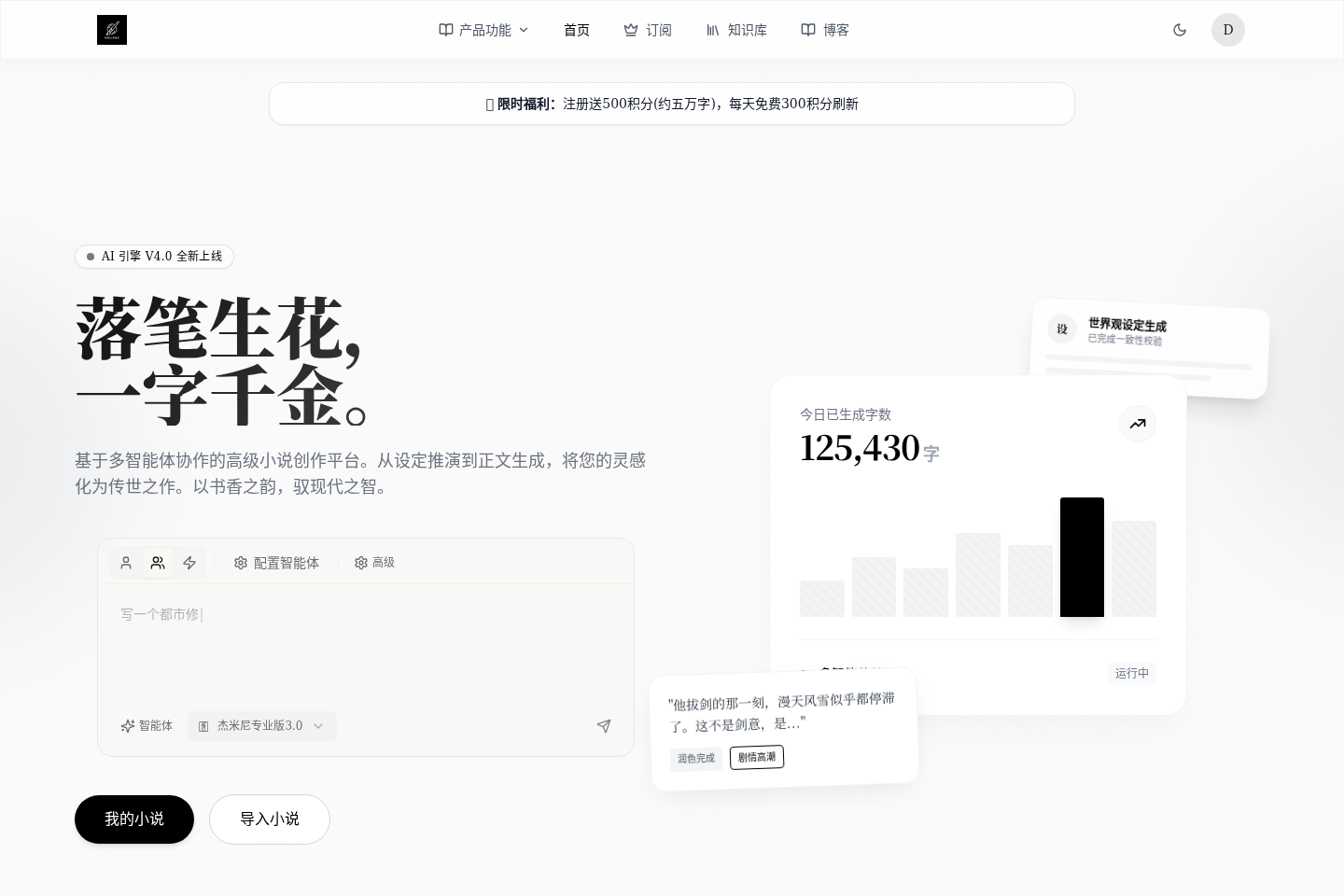
The home page is not just a showcase you glance at and leave. It is where your writing begins: you can type a story idea into the box in the middle and let the platform create the book and take you straight to the writing page; or you can go from here to "My Novels" to continue an earlier book, or bring in a draft you wrote before.
Remember the Three Home-Page Entries First
The home page has a lot going on, but these are the three entries to understand first:
- The box in the middle: for when new inspiration strikes and you want the AI to start the opening for you.
My Novels: for returning to existing books, managing your book pool and continuing to write.Import Novel: for when you already have a finished draft and want to move it here to keep writing.
If you only have an idea right now, the easiest way is to type it into the box in the middle. If you have already written dozens of chapters or are moving over, look at importing first.
When to Start Writing Straight From the Home Page
The box in the middle is not for "idle chat". When you press send:
- If you are not signed in, sending takes you to sign-in first.
- If you are signed in, sending creates a draft novel right away.
- The platform treats what you just wrote as the first task and carries it straight into the writing page.
In other words, this box is for "getting to work right now".
What fits best in the home-page box is usually:
- A one-line premise
- A main conflict
- An opening hook you want to test for staying power
Don't paste the entire setting of a whole book in at the start; this box is better for getting the opening going.
You Can Pick the Mode and Model Before Sending
Before sending, you can choose how you want the AI to work for you:
- Single-AI mode: for small tasks with a very clear goal.
- Multi-AI mode: for big tasks that need several steps together, such as structure, settings and expanding prose.
- Skill mode: for using specific built-in platform functions.
If you only want to see whether a premise is easy to write, the default settings are fine. Switch modes only when you know exactly that "this time I want the AI to build an outline first".
What My Novels Is For

My Novels does not replace the home-page box; it is your bookshelf. It suits these jobs better:
- You have several books and need to filter and continue one of them.
- You want to create a book by hand instead of launching from the home page.
- You need to review book status, sorting, grouping and recent progress.
If your need is "create the book first, build the structure slowly", going through My Novels is steadier.
Requirements and Limits of Import Novel
Import is not something you can just click and use. You should know:
- Users who are not signed in are sent to sign-in first.
- Users who are signed in but not subscribed see a notice first and are then sent to the subscription page.
- Only when you are signed in and your subscription is active does the import dialog actually open.
The import itself takes just 3 steps:
- Upload a file
- Preview the parsing result
- Confirm the import
One thing to stress: currently only .txt files can be uploaded. Please convert other formats to TXT before importing.
Manual Chapter Selection vs. Importing the Whole Book
During the import preview you will be asked to choose:
- Import the whole book directly
- Select chapters manually
Don't assume "if the preview shows only a few chapters, I can only import a few". In practice:
Import Whole Bookbrings in the entire book.Select Chapters Manuallyonly lets you pick the earlier chapters, which suits importing a little first to check whether the chapters are split correctly.
If you are moving a book over for the first time, try a neatly formatted .txt file first, confirm that all the chapter titles are recognized correctly, and then import the whole thick volume.
The 4 Most Common Misunderstandings
Treating the Home Page as a Long-Term Project Manager
The home page is better for starting out and getting in, not for managing many novels over time. Once you have many books, go back to Manage Your Bookshelf: Create New Books and Find Old Ones.
Thinking the Home-Page Box Is Just for Chatting
It really does create a new book for you, so write your idea clearly before you press send.
Clicking Import Repeatedly Without a Subscription
Import currently has a membership requirement; when the permission is not enabled, there is no hidden "guest import" path.
Migrating the Whole Book Without Checking the Format
What is genuinely supported now is .txt. If your old draft has a complicated format, trial-import a portion first; it is steadier than migrating the whole book at once.
What to Read Next
- To keep following the shortest beginner path: read New to Maliang Writer? Start Here
- To manage your book pool instead of launching from the home page: read Manage Your Bookshelf: Create New Books and Find Old Ones
- To understand differences in models, subscription and permissions: read Choosing AI Models and Managing Credits: Good Results, Lower Cost