
Managing Characters, Worldbuilding and Suspense: The Left Sidebar
The left sidebar of the writing page manages characters, settings and suspense in one place: how to find it, create cards and look things up with floating cards.
In this article 8 sections
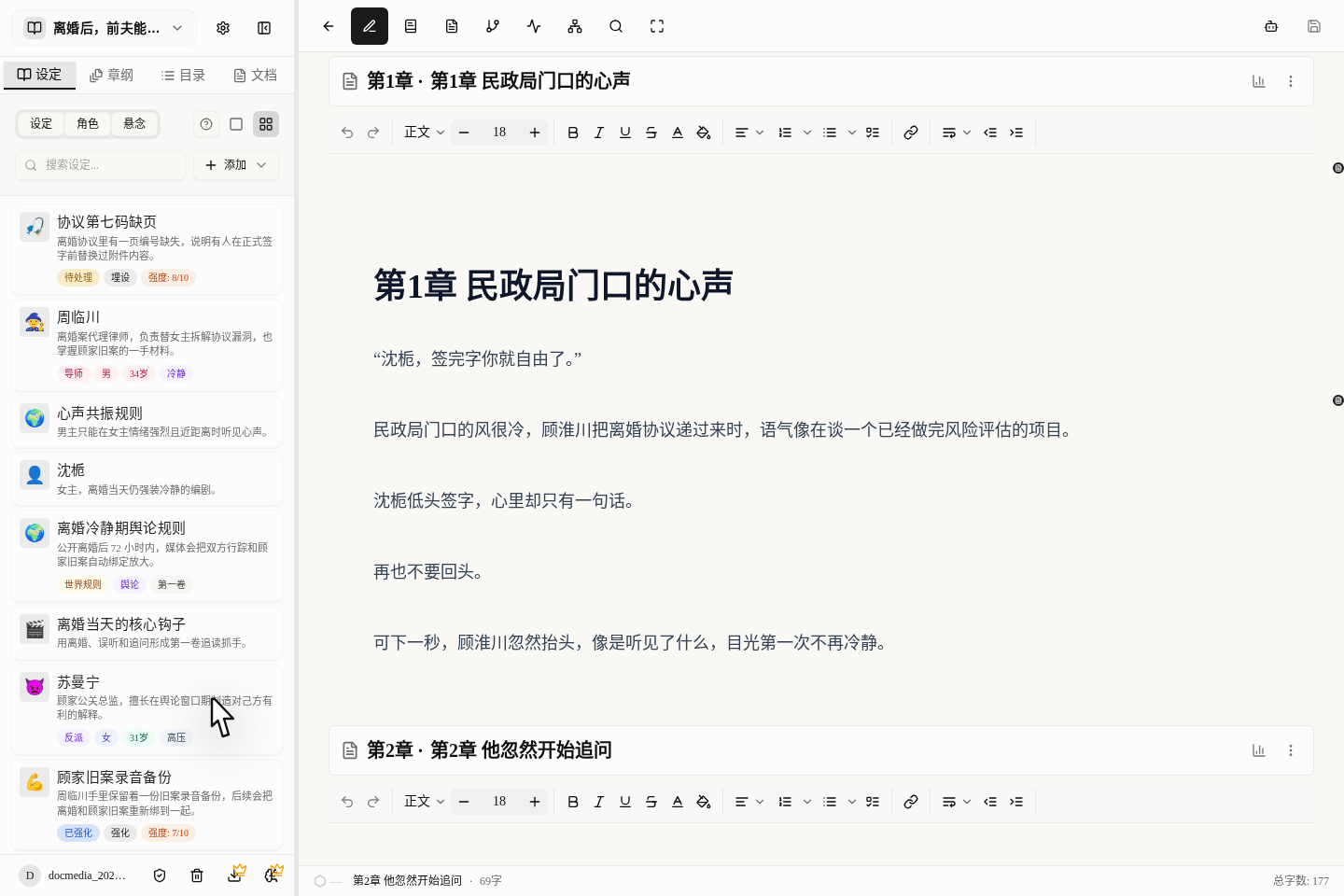
You no longer have to go to the old "Story Bible" page to manage your materials. The easiest and most convenient way is to work in the materials area on the left of the writing page. While you write the main text, you can add a character, fill in a world rule or note down a piece of foreshadowing right there.
First, find these spots
- Once you are in the writing page, switch to the
Story Bibletab on the left. - At the top you can choose to see only
Story Bible,CharactersorSuspense. - It is best to use the search box in the middle first, so you don't create duplicates.
- The
Addbutton at the top right lets you choose whether to add a setting, a character or a suspense thread. - The question-mark button pops up a short hint; click through for the full tutorial if you want the details.
When to create each of the three
Settings
Good for recording locations, items, rules, factions, worldview and timelines, the fixed settings you will keep coming back to.
Characters
Good for people who appear repeatedly and affect the plot. A passer-by who appears once does not need a card.
Suspense
Good for foreshadowing that spans several chapters, for example "planted in chapter 3, mentioned again in chapter 12, revealed in chapter 28".
How to create new materials
- Search first to see whether one already exists, so you don't create a duplicate.
- Click
Addand choose what you want to create (setting, character or suspense). - Settings and characters pop up right after you create them, so you don't have to leave the chapter you are writing.
- A new suspense thread first gives you a draft; it is only really saved after you fill it in and click
Save changes. - Once it is created, fill in at least the most basic information first, then decide whether to let AI help with the details.
How to edit materials
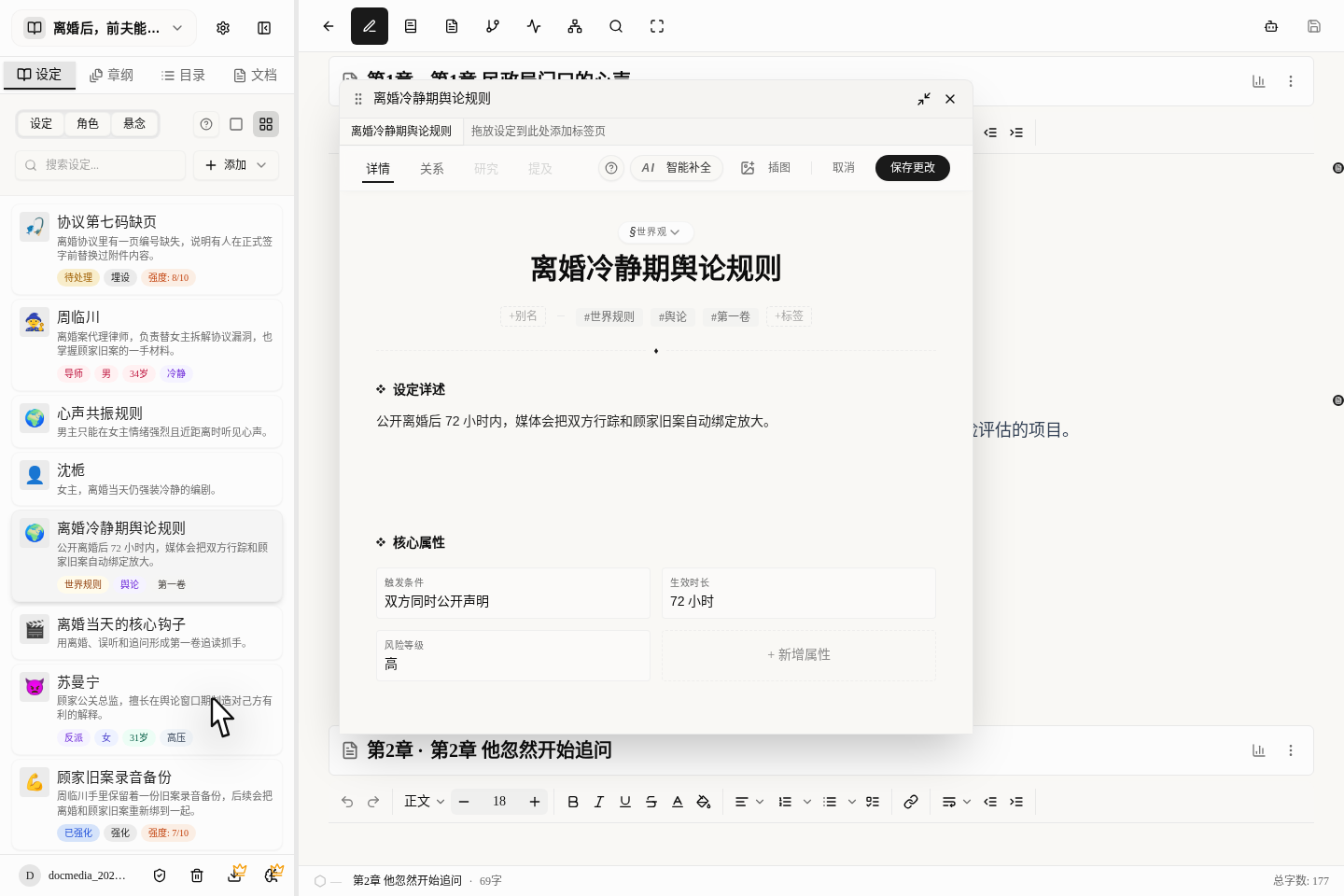
- Click any item and it pops up beside the main text.
- Click the same item again and it brings the one you already opened back up, so you don't end up with a pile of duplicates.
- On a computer you can open several cards side by side; on a phone, an opened card fills the whole screen.
- In many places on the card you can double-click (or click once) to edit directly, but remember to click
Save changesat the top right afterwards. - You don't have to leave the main text just to edit a material, which is why this left panel is now the way to do it.
A few handy tools in the left panel
- Filter by category: click to see only settings, or only characters or suspense.
- Search by name: find things fast without flipping through pages.
- Change the view: use compact mode when you have lots of materials, and switch to detailed mode when you want a closer look.
- Bulk delete: very quick when you are cleaning out discarded drafts.
A suggested order for organizing
- First record the world rules, locations and key props that this volume is sure to use under settings.
- Then create character cards for the protagonist, the antagonist and the important supporting characters, making clear at least their position, goal and weakness.
- As soon as a clue spans chapters, create a suspense card right away; don't wait until things get messy to fill it in.
- Long explanations, volume goals and places you need to come back and revise don't belong in a material card; write them in Organize Notes and Materials: Keep Ideas and Foreshadowing Together.
5 pitfalls beginners fall into most often
After creating a setting, check that the type is right
When you create a new material, first check whether you put it in the wrong category, then keep filling it in.
Being able to double-click and edit does not mean it is saved
Many places on a card can be edited with a click, but after editing you must click Save changes at the top right for it to count.
Searching mainly relies on names
However fancy the aliases and descriptions are, the most common name still has to go in the name field, or you will spend ages searching next time.
Don't write plot plans into fixed settings
Things like "which chapter I plan to reveal this foreshadowing in" or "keep this from readers for this volume" are better written in the documents area, not directly in the setting details.
Thinking it saves automatically once created
Settings and characters pop up after creation so you can keep filling them in, but a new suspense thread is only a draft; if you don't click save and close it, it is gone.