
Using the AI Assistant While You Write: Chat, Modes and Approvals
Open new chats, switch between quick Q&A and multi-agent mode, approve AI content before it enters your prose, and manage history without losing context.

In this article 9 sections
If you already have the writing page open, the AI helper you will use most, and the one that works best, is on the right. Its biggest advantage is not that it "can chat", but that it knows which book you are writing, which chapter, and which settings and reference materials you are using. The old standalone chat page is no longer recommended; just use the one inside the writing page.
Remember: This Is the Place You Should Use Most
The standalone chat page is only a transition now; the AI assistant on the writing page is the one you should use. The reasons are simple:
- It can see the chapter, settings and outline you are currently working on.
- You can send it the reference material you have found and your chapter content directly.
- Whatever it revises, you can use directly in your prose.
If you want the AI to revise a draft, continue writing, fill in settings or split up a task, starting right here is correct.
Step 1: Manage Your Chat Windows; Don't Keep Opening New Ones
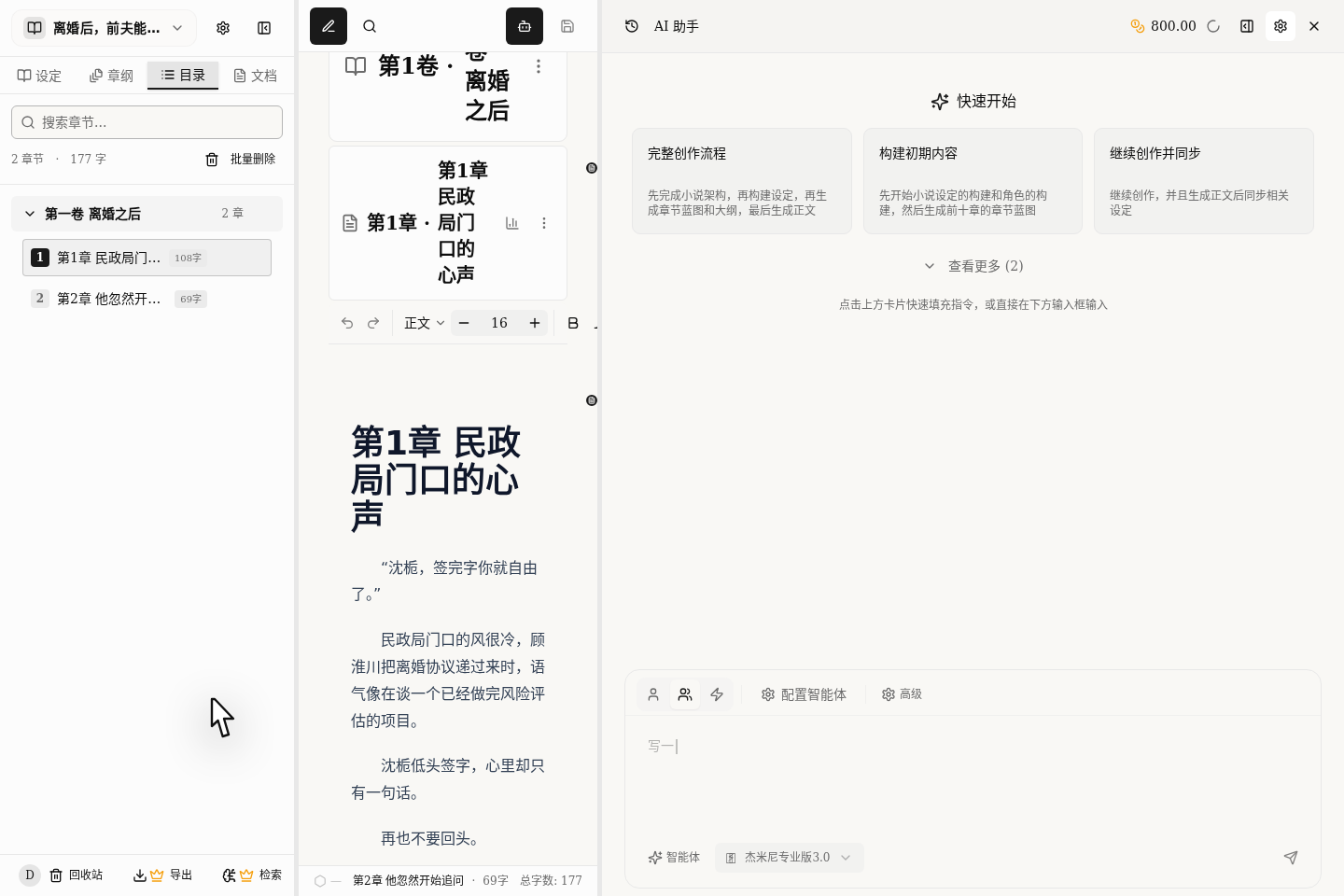
The AI assistant is not a "ask one question and close it" tool. It gives you two places to manage conversations:
- History: like "the recent chat archive for this book".
- The tabs at the top: like "the few things you are working on right now".
Good habits are:
- First confirm you are in the right book.
- Keep talking about the same matter in the same conversation.
- Don't split one big task into several scattered conversations.
You can split conversations by task, for example:
- Revising the opening of chapter one
- Adding to character settings
- Hit-book breakdown analysis
That way, when you keep asking, the AI still remembers what came before.
A quick reminder: closing a tab only takes it off the current screen; it does not delete the conversation. To delete it for good, go to the history.
When to Use a Single AI, Multiple AIs or Skill Mode
Never mind which sounds more advanced; what matters is whether your task needs to be split up.
Single AI
Suited to:
- Revising a line of dialogue
- Adding a character profile
- Checking small problems within one chapter
The goal of such tasks is very clear and does not need several AIs dividing the work.
Multiple AIs
Suited to:
- Handling structure, settings and prose at the same time
- Wanting different AIs to give advice from different angles
- Needing to split a complex task into several steps
Use multiple AIs only for complex problems; don't call them all in for every small thing.
Skill Mode
Suited to:
- You want to use a specific built-in platform function
- The job is not simple Q&A but a fixed method
- You would rather "just get the job done" than "chat about it first"
If you don't know which to choose yet, start with a single AI; that is enough.
How to Choose Between AI and Plan
Besides choosing how many AIs, you can also choose "how they work":
AI: for when you already know you want it to start working right away.Plan: for when you want the AI to draft a plan first, and only start once you've looked it over and agreed.
If the task involves looking up a lot of material, or you are not yet sure how it will go about it, choosing Plan first is steadier.
Use @ References to Send Material to the AI
The most powerful thing about this AI assistant is that it can read what you have written directly. We suggest using it like this:
- To revise a chapter,
@that chapter in. - To fill in a character,
@the character card in. - To borrow tricks from someone else's book,
@the breakdown report in.
Don't treat references as optional. For complex tasks, if you don't give it material, it can only make things up.
Don't Click Approve With Your Eyes Closed
Sometimes the AI asks whether to carry out an action. The steadiest approach is:
- First look at what it intends to do.
- Ask yourself whether this step is really what you want it to do.
- If it isn't right, reject it, and then tell it what is wrong.
Approval is not meant to slow you down, but to catch the AI going off course. Especially when it is about to change the outline or look up material, never click approve without looking.
If it asks you several questions at once, we suggest:
- Read through what each one does.
- Decide for each action whether to approve, reject or modify.
- Submit them all together at the end, rather than clicking whenever you see a button.
One more small reminder: if the screen above is still waiting for your approval or an answer, and you type below, the AI will assume you are answering the question above rather than starting a new topic.
How People Who Really Write Books Use It
If you are writing prose, try this order:
- Find a conversation where you previously discussed the topic.
- Make sure this time the AI only solves one main problem for you.
- Choose between a single AI and multiple AIs.
- Use
@to send it the relevant chapters and settings. - If you are afraid it will mess things up, choose
Planfirst and have it propose a scheme. - Then send the task.
- When approving, agree only to the actions you really need.
- Once you have the result, keep talking in the same conversation instead of opening a new one at every turn.
Pitfalls Beginners Hit Most
Opening a New Conversation Even for a Small Question
The result is that the AI forgets what came before, and you have to explain again.
Using Multiple AIs for Every Small Edit
Multiple AIs are not a cure-all. Overcomplicating small things only makes them slower.
Not Sending Material and Expecting the AI to Understand Your Book
When writing a long novel, this is the easiest way to make the AI go off track.
Looking Only at the Button, Not the Content, When Approving
Approval exists so that you can check at the critical moment. Skip it, and you often have to redo more later.
The Screen Above Is Waiting for Your Approval, and You Keep Using the Box Below as Ordinary Chat
What you type then will be treated by the AI as an approval comment or an answer to the questionnaire.
What to Read Next
- To know where to chat: read The Editor's Right-Hand AI Assistant: Your Main Chat Entry
- To make several AIs work together: read Choosing a Collaboration Mode: One AI or Several Working Together
- To organize your materials: read Organize Notes and Materials: Keep Ideas and Foreshadowing Together
- To choose a model: read Choosing AI Models and Managing Credits: Good Results, Lower Cost