
Organize Notes and Materials: Keep Ideas and Foreshadowing Together
Build folders for your materials, turn ideas into notes you can look up anytime, and track unfilled plot threads with a foreshadowing ledger and to-do list.
In this article 10 sections
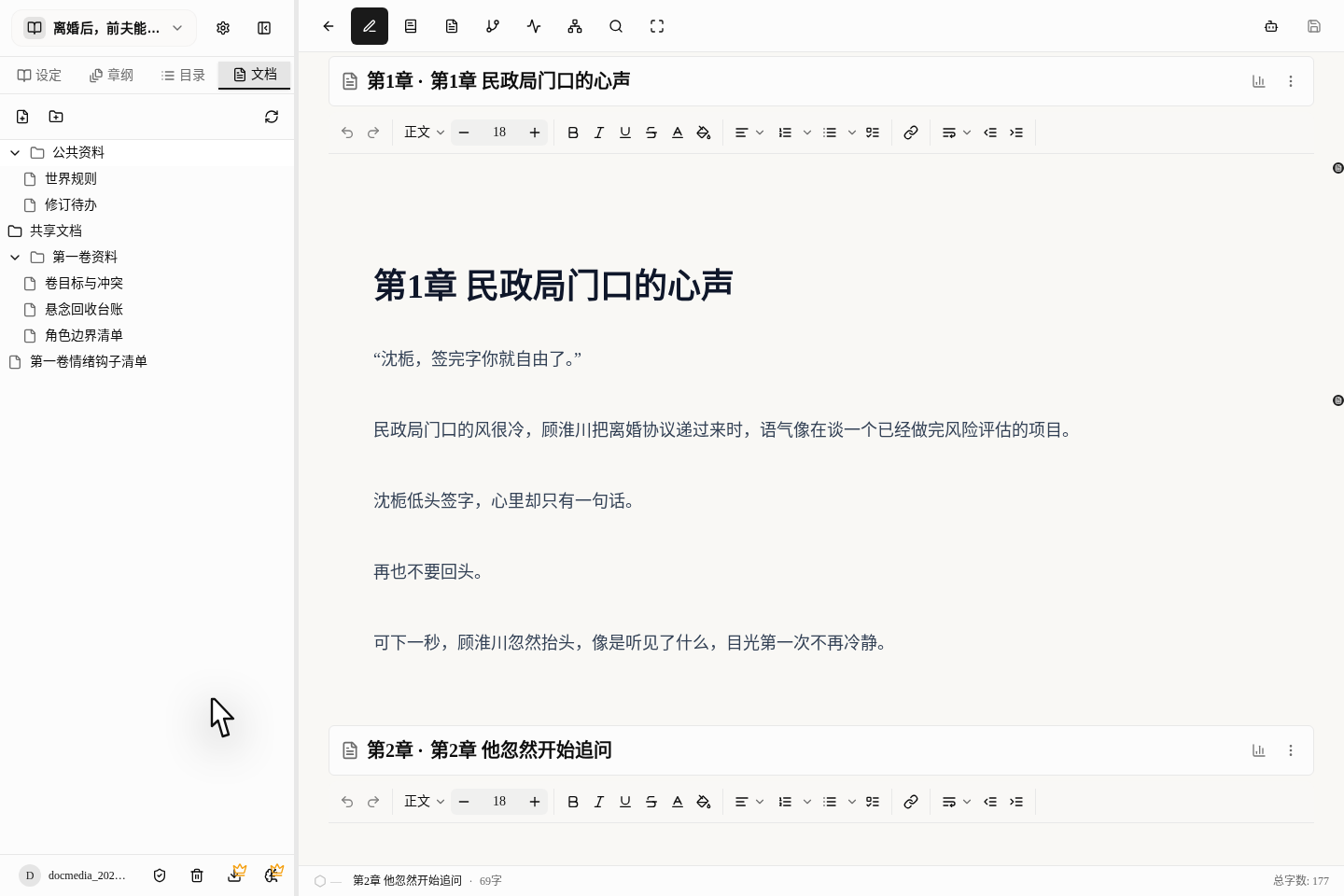
When you write a long novel, besides the prose and the setting cards, you certainly have many scraps of inspiration, outline notes and foreshadowing records. These belong best in Documents on the left of the writing page. The prose is for readers, the setting cards record fixed settings, and the documents area is your private notebook.
How to Find and Use the Documents Area
- On the left of the writing page, open the
Documentstab. You can create folders to sort things, so you don't have to cram all your notes into one long document. - The buttons at the top let you create folders and files directly; the small menu next to a folder can also add things inside it.
- A new file is named
Untitled.mdby default; press Enter or click elsewhere and it is created. - Clicking a file opens it in the middle; on a computer, holding
Ctrl/Cmdwhile you click opens a floating small window so you can compare it against your prose.
Suggested Order of Use
- Don't write outlines and notes in the prose; switch to the
Documentstab on the left first. - Create folders (for example by volume, or by topic), then create documents inside them.
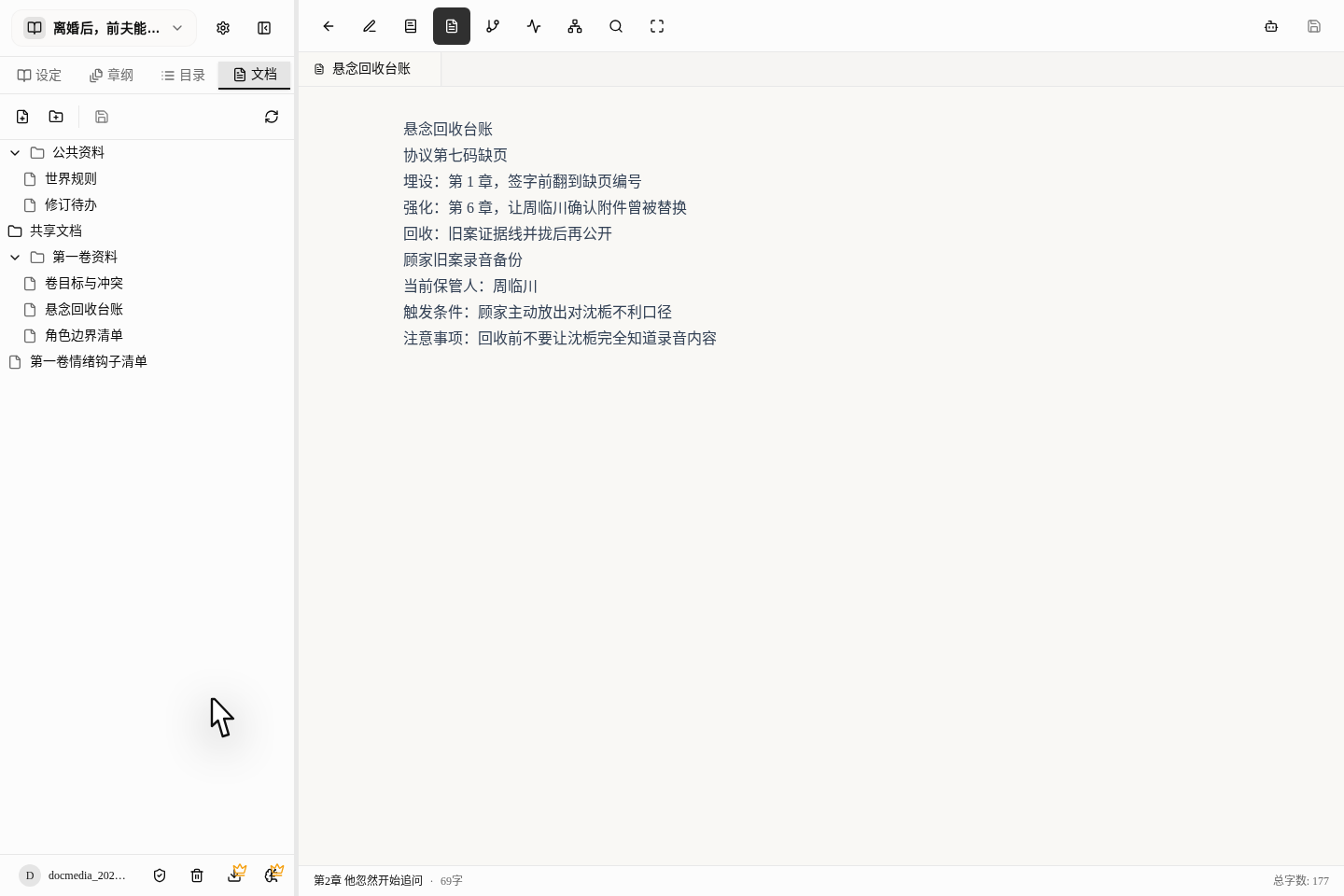
- Open a document and write down your ideas and plans.
- When writing the prose, keep the document open beside it for reference.
About Saving and Syncing Across Devices
- When you stop typing for about two seconds, the document is saved automatically.
- There is also a save button at the top right, or press
Ctrl/Cmd + Sto save manually. - If you see a small red dot next to the title, saving isn't finished yet; it is steadiest to wait for it to disappear before closing the page.
- The next time you come in, the platform will try to restore the documents and folder state you had open last time.
How to Use Computer and Phone Together
- A computer screen is big and best for keeping prose and materials open side by side.
- On a computer, holding
Ctrl/Cmdand clicking a file opens a floating small window, which is especially handy. - On a phone, opening a document fills the whole screen, so you can't view it side by side with the prose.
- So the phone suits jotting down inspiration anywhere, and the computer suits sitting down to write properly.
We Suggest You Create These 4 Kinds of Documents First
What This Volume Needs to Cover (Volume Goals)
Write down the big events that must happen in this volume, how far the romance should develop, and which secrets can't be told yet.
What Each Character Knows Now (Information Gap)
Write down what the protagonist and supporting characters can and can't do now, and what they are still in the dark about. That way, a glance while writing keeps a character from getting a power-up too early.
Which Holes You Have Dug (Foreshadowing Record)
Write down "this foreshadowing was planted in which chapter, where I plan to mention it again, and in which chapter it will finally be revealed". This differs from a suspense card: a suspense card records the setting, while this records your writing plan.
What Wasn't Written Well and Needs Fixing (Revision Notes)
Write down issues to go back and fix later, like "this chapter feels padded", "this character's speech feels off" or "the secret came out too early".
A Recommended Folder Structure
Volume 1/
  Volume goals and conflicts.md
  Character boundaries list.md
  Suspense payoff ledger.md
Shared materials/
  World rules.md
  Factions and geography.md
  Revision to-dos.md
This split is not for looks; it lets you find at once where to look things up when you get stuck halfway through writing.
How the Documents Area and Setting Cards Divide the Work
- Fixed settings that won't change (like a character's height or a weapon's name) go in setting cards and character cards.
- Plans that will change, memos and long background stories go in the documents area.
- The story content that readers actually see belongs in the prose itself.
When to Create a Document Instead of Editing a Setting Card
- It is a plot plan, not a fixed setting of a particular character.
- It is a list that needs frequent updating, like "holes not yet filled".
- You want to read this material while looking at the prose, rather than searching every time.
- It is a memo for yourself that readers must not see.
The 4 Pitfalls Beginners Hit Most
Cramming All Your Materials Into One Document
Later you won't even want to flip through it yourself. Creating separate documents by volume or topic makes things much quicker to find.
Thinking Autosave Makes Everything Safe
Autosave is convenient, but it doesn't save on every single keystroke. When you see the small red dot, wait a moment; after changing something important, it is still best to press Ctrl/Cmd + S out of habit.
Writing Plot Plans Into Character Cards
Character cards are for recording settings; how the plot develops and how foreshadowing is planted belong in the documents area, otherwise your materials get messier and messier.
Trying to Make Things Complicated From the Start
Don't create dozens of empty folders at the beginning. When you feel a category is needed as you write, create the matching folder then.