
Removing AI Tone From Your Text: Three Common Entry Points
Remove the AI tone three ways: from prose highlights, the right chat panel, or in batches from the chapter list. When to use each, and how rechecks work.
In this article 10 sections
AI Detection is "finding out where the problems are", and removing the AI tone is "getting straight to the revising". These two steps are now separate.
If you already know which chapter sounds too mechanical, or you have just finished an AI Detection, read this one next: where exactly to click to start revising, and what the platform will do for you automatically afterwards.
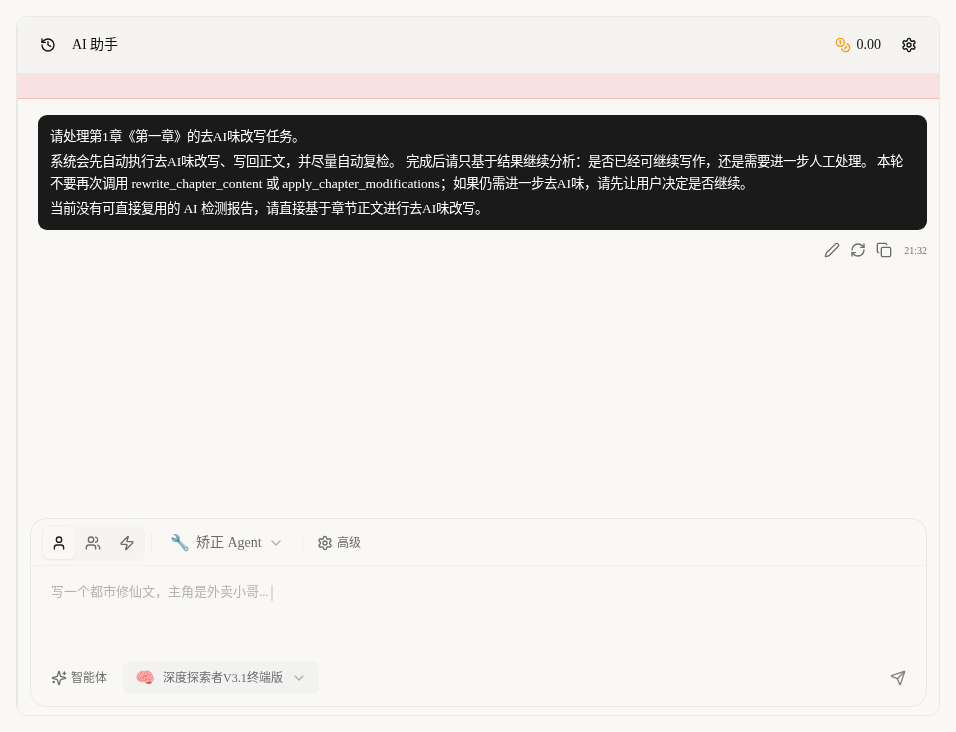
First, remember: it is not just a small pop-up that tweaks a couple of sentences
Today's Remove AI Tone is not that old-fashioned pop-up tool. It hands the job straight to the Correction AI on the right.
After you click, the platform automatically does these steps for you:
- Sends this chapter to the Correction AI.
- If this chapter was detected before and the report still matches the current prose, attaches the report too.
- Automatically starts the AI-tone removal revision.
- Automatically replaces the revised content in the prose.
- Automatically checks again to see whether any machine tone is left after the revision.
In other words, what you click is not "polish it a bit", but "start a whole, complete revision process".
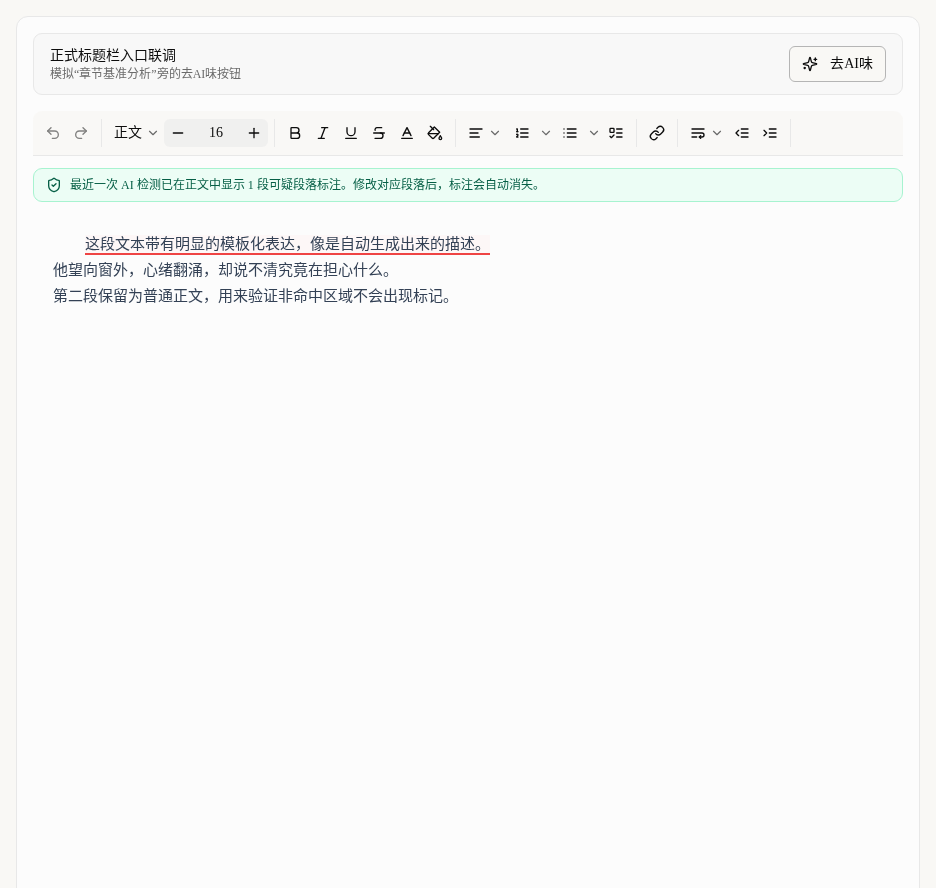
Entry 1: Remove AI Tone next to the prose title
This place is best when:
- You are revising the current chapter.
- You already feel this chapter sounds too much like AI.
- You do not want to go back to the chapter list and flip around first.
The operation is the simplest:
- Open this chapter's prose.
- Find Remove AI Tone to the right of the title.
- Click it, and the task is sent to the Correction AI on the right.
This entry by default "revises only the current chapter", and suits revising while you write best.
Entry 2: Remove AI Tone in the chapter list
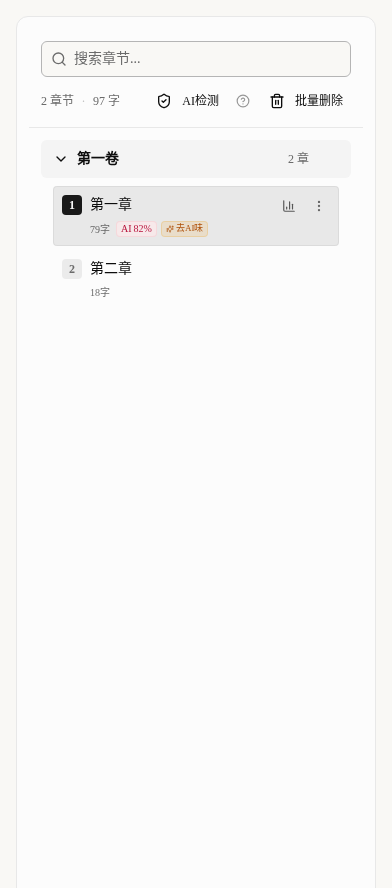
There are two ways to click in the chapter list, but both are for "revising a single chapter on its own":
- The Remove AI Tone button next to the small risk icon beside a chapter.
- Remove AI Tone in the three-dot menu at the far right of the chapter.
It suits these situations best:
- You have not opened that chapter yet and are just looking at the list.
- You see a chapter marked high-risk and want to fix it right away.
- You plan to revise chapter by chapter down the list.
If this chapter already has a latest detection report that still matches the prose, the platform sends the report along to the Correction AI; if it no longer matches, it simply revises according to the current prose.
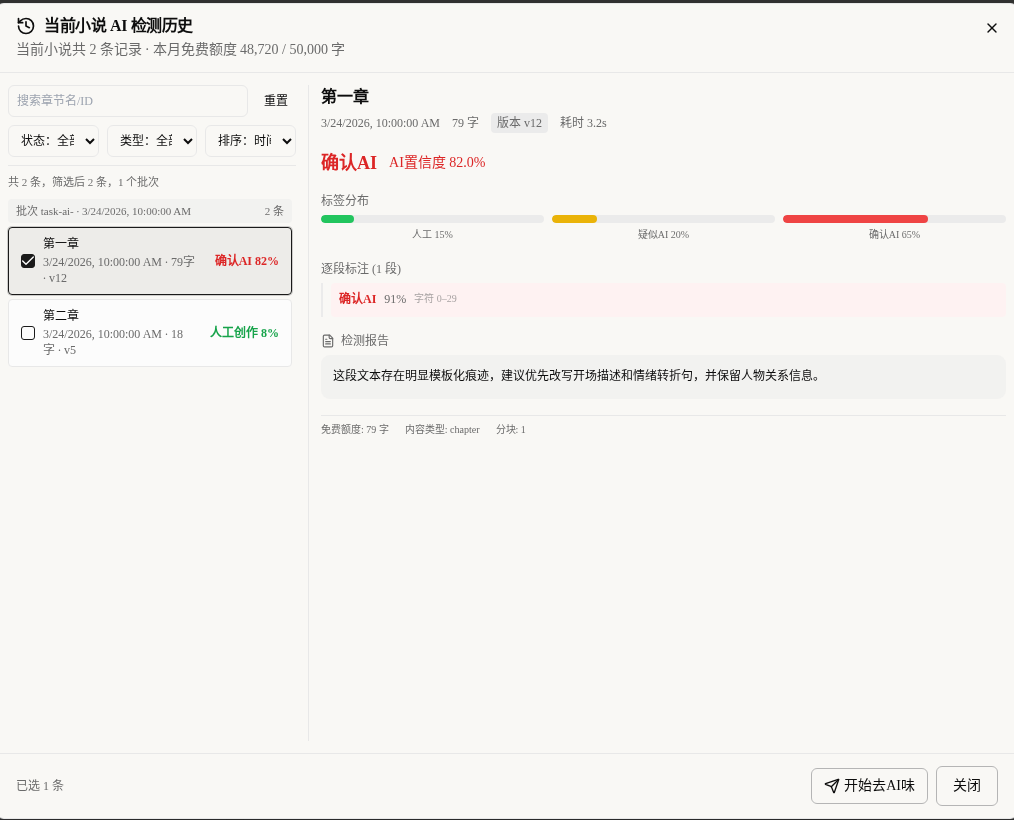
Entry 3: Start Removing AI Tone in the detection results and history
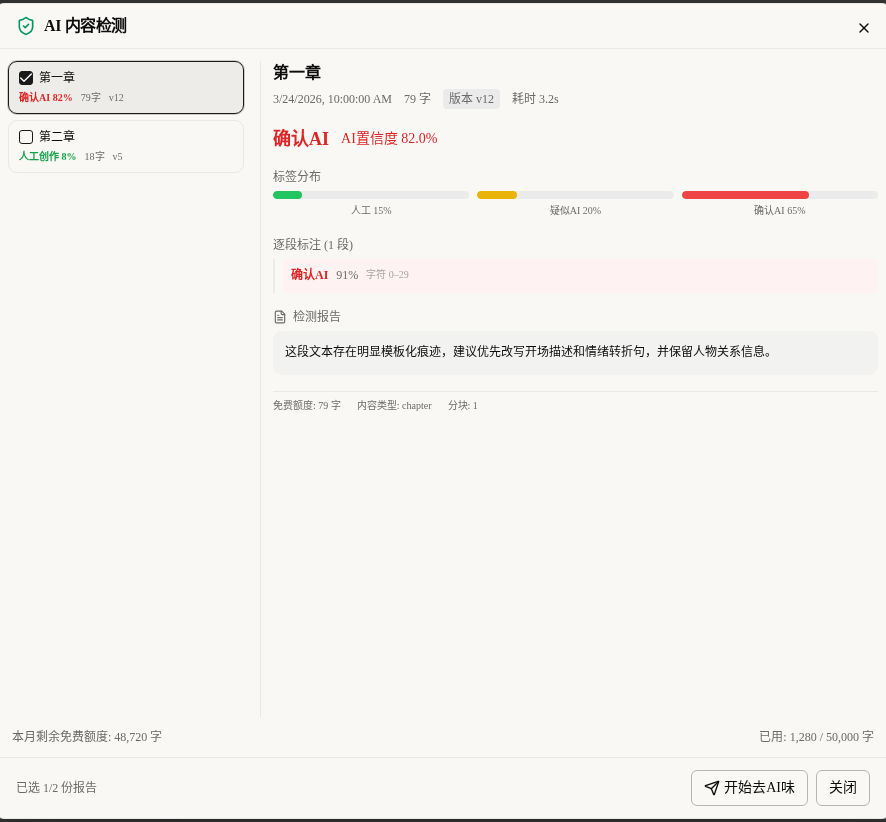
This entry suits "check everything first, then revise together".
You will see this button in two places:
- The results dialog after a batch detection finishes.
- The AI Detection history at the bottom left.
The biggest difference from the previous two entries is:
- The previous two both revise one chapter at a time.
- This one lets you tick several chapters at once.
- The platform automatically removes duplicate chapters, then rewrites chapter after chapter, fills each back into the prose, and checks it again.
So if you have just tested five chapters and found that three have bigger problems, the easiest way is not to click through them one by one, but to tick those three chapters in the results and click Start Removing AI Tone.
How to choose among the three entries
You can remember it like this:
- Next to the prose title: I am writing this chapter, revise this chapter directly.
- In the chapter list: I am looking at the list, and I click whichever chapter I see has a problem.
- Results and history: I have checked a batch and am ready to fix all the problem ones together.
If you only want to revise "the chapter in front of you", the first two are faster.
If you want to fix "the chapters that have just been flagged" all together, the third is the easiest.
When the detection report is attached automatically
The earlier report is not attached every time. The platform first checks whether the report is still usable.
Usually these conditions have to be met:
- This detection has finished running.
- The content of the report does not yet differ too much from your current prose.
- The problem passages the report points to can still be found in the current prose.
If they no longer match, the platform does not force the old report in; it revises directly according to the current prose, so the AI does not revise blindly according to out-of-date problems.
After you click, how the AI on the right actually works
The whole process is now built as automatic steps:
- It first puts this chapter's content and the usable report into the chat box.
- The writing page automatically opens the AI assistant on the right.
- The Correction AI starts the AI-tone removal revision first.
- When it finishes, it automatically replaces the text in the prose.
- If you have turned on automatic recheck, it also tests again for you.
- After all this is done, the AI gives you an analysis of the result and does not keep revising endlessly.
So although what you see is "a jump to the AI assistant on the right", it is already working for you step by step behind the scenes.
Suggested order of operations
A smooth order is:
- If you are not sure which chapter has problems, run an AI Detection first.
- If you are revising only the current chapter, click Remove AI Tone next to the title or in the chapter list.
- If you want to revise several chapters together, tick them in the detection results or the history and click Start Removing AI Tone.
- After it finishes, go back to the prose and see whether it already reads much more natural, then decide whether to revise a bit by hand yourself.
The 4 things beginners get wrong most
Thinking you must run AI Detection before removing the AI tone
No. The buttons next to the title and in the chapter list are there so that you can "revise first and ask questions later".
Thinking it only gives advice and does not revise the prose for you
No. It revises automatically, and does its best to fill the revised content back into the prose automatically.
Thinking an earlier report is always usable
No. If you have changed the chapter beyond recognition, the old report is useless, and the platform revises directly according to the current prose.
Thinking revising several chapters together will get messy
It will not. In a batch, the platform removes duplicate chapters and then revises chapter by chapter in a queue; it will not revise the same chapter several times.
What to read next
- To first learn "how to find which passages sound most like AI": read Spot and Remove the AI Tone: Make Your Text Read Human
- To see how the right-hand AI assistant itself chats and handles approval: read Using the AI Assistant While You Write: Chat, Modes and Approvals
- To control revision costs and recheck fees: read Choosing AI Models and Managing Credits: Good Results, Lower Cost