
Show the AI Only What It Needs: Context Assembly Settings
How much does the AI read, and how many credits does it burn? Configure context assembly item by item: full or names-only settings, outlines on demand, live token estimate—so the same credits stretch tens of thousands of words further, with less drift.
In this article 6 sections
Every time you ask the AI to write prose, how much of your material does it actually "see"? By default, Maliang Writer stuffs the whole novel structure, settings, characters and suspense into the context. The fuller the content, the less likely the AI is to drift, but the more tokens (that is, credits) it uses. Context assembly puts the switch for "how much material to feed the AI" in your hands.
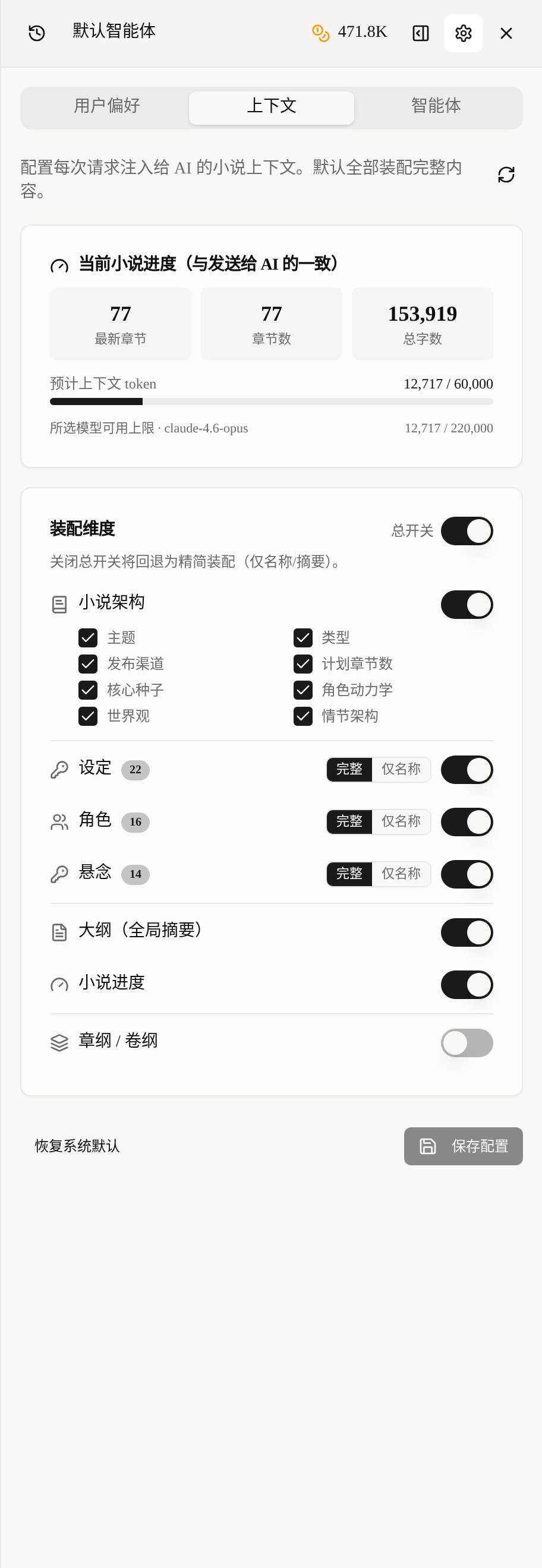
The entry is in the AI assistant column on the right of the writing page: click the gear icon AI Feature Management at the top, then switch to the Context tab.
First, understand the card at the very top
At the very top is Current Novel Progress (same as what is sent to the AI). These numbers are the same copy as what is really sent to the AI; they are not estimates:
Latest Chapter: which chapter the AI thinks you have reachedChapter Count: the total number of chapters in the bookTotal Words: the cumulative word count
The progress bar below is the key: Estimated Context Tokens. It counts in real time roughly how many tokens your current assembly will cost, followed by the default limit (60,000).
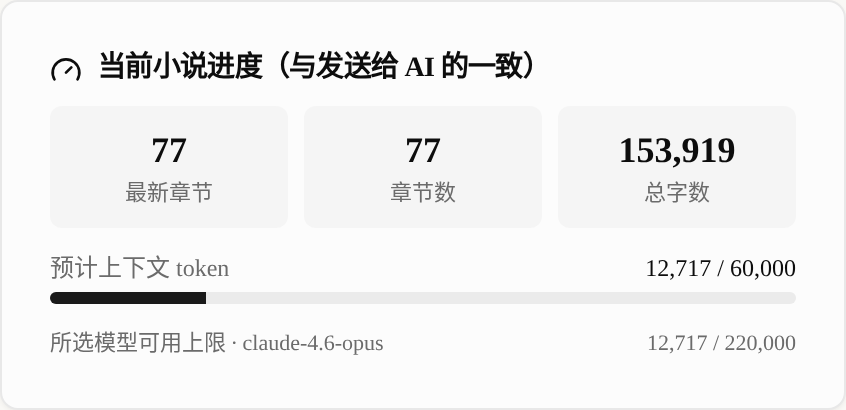
Further down there is a line Selected Model Limit, which carries the name of the generation model you have currently chosen (for example claude-4.6-opus). This line is very useful: some models have a small context window, and here it tells you in advance "this assembly will not fit", so you do not have to wait until you actually send it to find out it was trimmed.
A simple way to remember it: the bar above compares against the "platform default limit", and the line below compares against "whether the model you chose can hold it". If neither has turned red, send with confidence.
How to adjust each dimension
Scroll down to Assembly Dimensions. At the top right there is a Master Switch. Turn it off and it falls back to "lean assembly" (only names and summaries), which saves the most tokens but leaves the AI knowing the least. We suggest keeping it on most of the time and fine-tuning item by item.
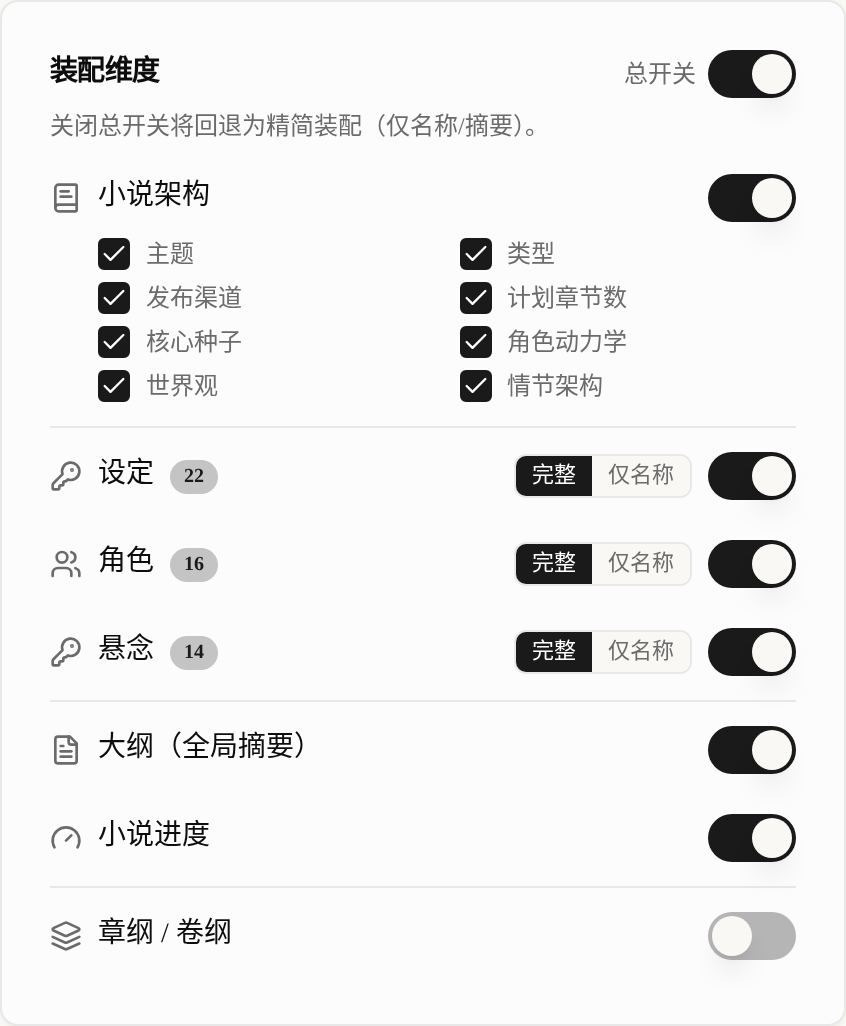
Item by item:
Novel Structure: you can tick by field, for example give onlyWorldview,Core SeedandPlot Structure, and not fields likePublishing Channelthat are useless for writing prose.Settings/Characters/Suspense: each has two modes,FullandNames Only.Fullgives the AI the whole entry;Names Onlygives only a list of names, letting the AI know "these things exist" without expanding the details. This is where most of the token savings come from.Outline (Global Summary): brings along the whole book's global summary, suited to times when you need the AI to keep the big picture in mind.Novel Progress: brings along the progress information.
The small number after each item (Settings 22, Characters 16, Suspense 14) is the current number of entries in this book, so you can judge whether "putting it all in would be too much".
Whether to assemble chapter and volume outlines too
At the bottom is Chapter / Volume Outlines, which is off by default. Once turned on, the AI can see the chapter blueprints and volume outlines you have written, and what it writes follows your plan more closely.
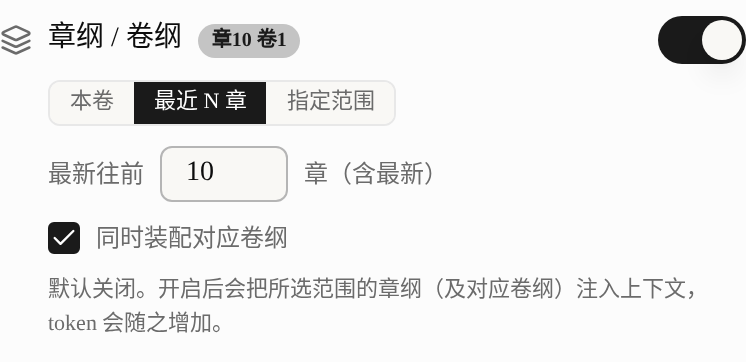
It has three assembly ranges:
This Volume: gives only the current volume's chapter outlinesLast N Chapters: counts N chapters back from the latest (the picture sets 10 chapters)Custom Range: fill in a chapter range by hand
Below there is also a checkbox Also assemble matching volume outlines; tick it and the matching volume outlines are brought to the AI as well. The small badge Ch10 Vol1 next to the switch tells you how many chapter outlines and how many volume outlines were actually assembled this time, so you know where you stand.
Note: chapter and volume outlines take up a lot of space, and tokens rise noticeably once they are on. Turn them on only when you want the AI to follow the outline strictly; you can turn them off for ordinary expansion.
Practical ratios for saving tokens
You do not need everything on every time. Here are three common combinations:
- Writing prose in bulk (cheapest): use
Names Onlyfor settings and characters, turn suspense off, and give onlyThis Volumefor the chapter outlines. The AI knows which people and settings exist and will ask for the details when it needs them. - Key chapters (playing it safe):
Fullfor settings and characters,Fullfor suspense, chapter outlines on withLast N Chaptersand the volume outlines ticked. Spend a few more credits to avoid drifting off track. - Pure creative chat (lightest): simply turn off the
Master Switchand keep only the lean assembly. When you brainstorm with the AI you do not need to stuff in the full set of material at all.
After changing, do not forget to click Save Configuration at the bottom. The configuration is stored separately for each novel.
What happens when tokens go over
If your assembly pushes the estimated tokens above the default limit, the progress bar turns red and a prompt asks you to turn on Max Context in the chat settings; if you do not, the part that exceeds the limit is compressed automatically, and the AI may be unable to "see everything".
Likewise, if the selected model's limit is exceeded, the line below also turns red. There are two ways out: either slim down the dimensions using the ratios above, or switch to a model with a larger context.
How to continue
Once you have the context under control, read these next: