
Cover and Character Art With AI: How to Get Images That Look Good
Draw covers, character portraits and setting illustrations with AI: where the entries are, how to write prompts that work and how to keep one consistent style.
In this article 11 sections
The current front end splits image features into three real entries: the work's cover, character portraits and setting illustrations. They share the same image generation dialog, but their entry points, timing and default form values all differ. Handling them separately is closer to what real authors need.
First, tell the three entries apart
In the current front end you will meet these three paths:
- Cover: enter from the
Novel Structurepage; it handles how the work looks to the outside world and sets the visual tone. - Character portrait: enter from the
Portraitbutton in a character card; it handles keeping characters' looks consistent. - Setting illustration: enter from the
Illustrationbutton in a setting card; it handles visualizing scenes, objects and rules.
Don't mix the three tasks into one generation. A cover stresses promotional appeal, a character image stresses recognizability, and a setting image stresses its link to the text entry.
First, understand what is actually in the current dialog
The real dialog is not as simple as "write one prompt and click generate"; it is mainly split into three parts:
Smart Generate: the real main workbench, with the model, the image description, the generate button and local upload.Pick Reference Cover: appears only in the cover scenario; you can pick a reference cover from popular covers or from your own novels.Gallery: view the images already generated for this work, character or setting, for easy reuse.
The current form also has a few key real points:
- The model shows its credit cost directly, and different models cost different amounts.
- Non-cover scenarios show
StyleandAspect Ratio. - The cover scenario by default stresses the reference cover and the publishing channel, rather than using the form flow for characters and settings.
Remember one hard prerequisite: characters and settings must be saved first, or the entry is not truly usable
This is not "we suggest saving first"; it is the real current prerequisite:
- If a new character or setting is still an unsaved draft in the card, the
Portrait / Illustrationdialog will not actually become usable. - So the steadier order is always: save the entry first, then turn on the image feature.
- After you generate or choose an image, don't close the card right away either; you still have to click the outer
Save changesonce more before the image is formally written back to the character card or setting card.
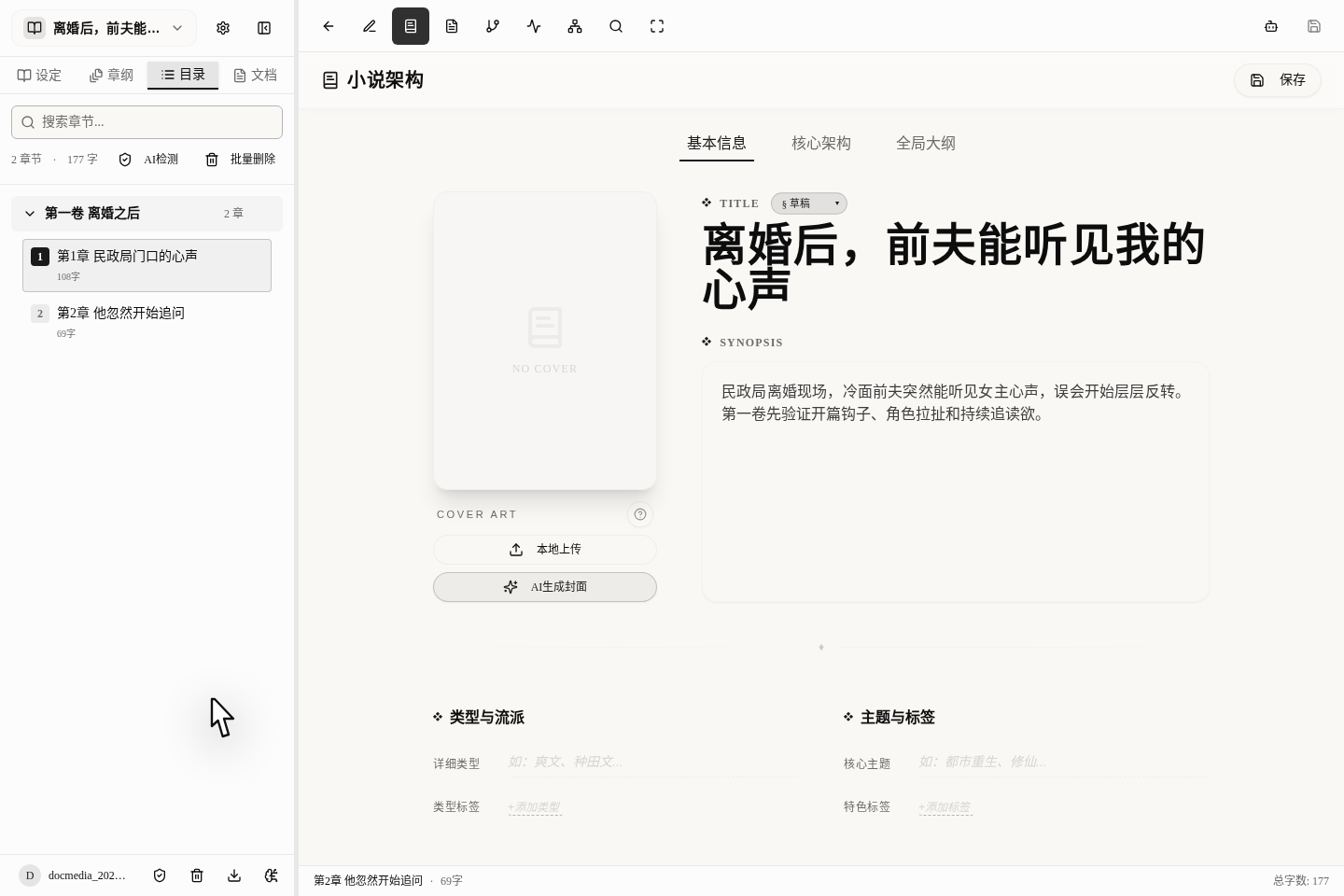
The cover entry is in the novel structure page
The real entry is right in the basic information area of the novel structure page, where you will first see:
- The cover preview slot.
Upload from Device.Generate AI Cover.
This step is best for making a work-level judgment first: what genre feel, what emotional direction and what reader expectation this book should convey. The clearer the title and synopsis, the easier it is for the cover direction to converge.
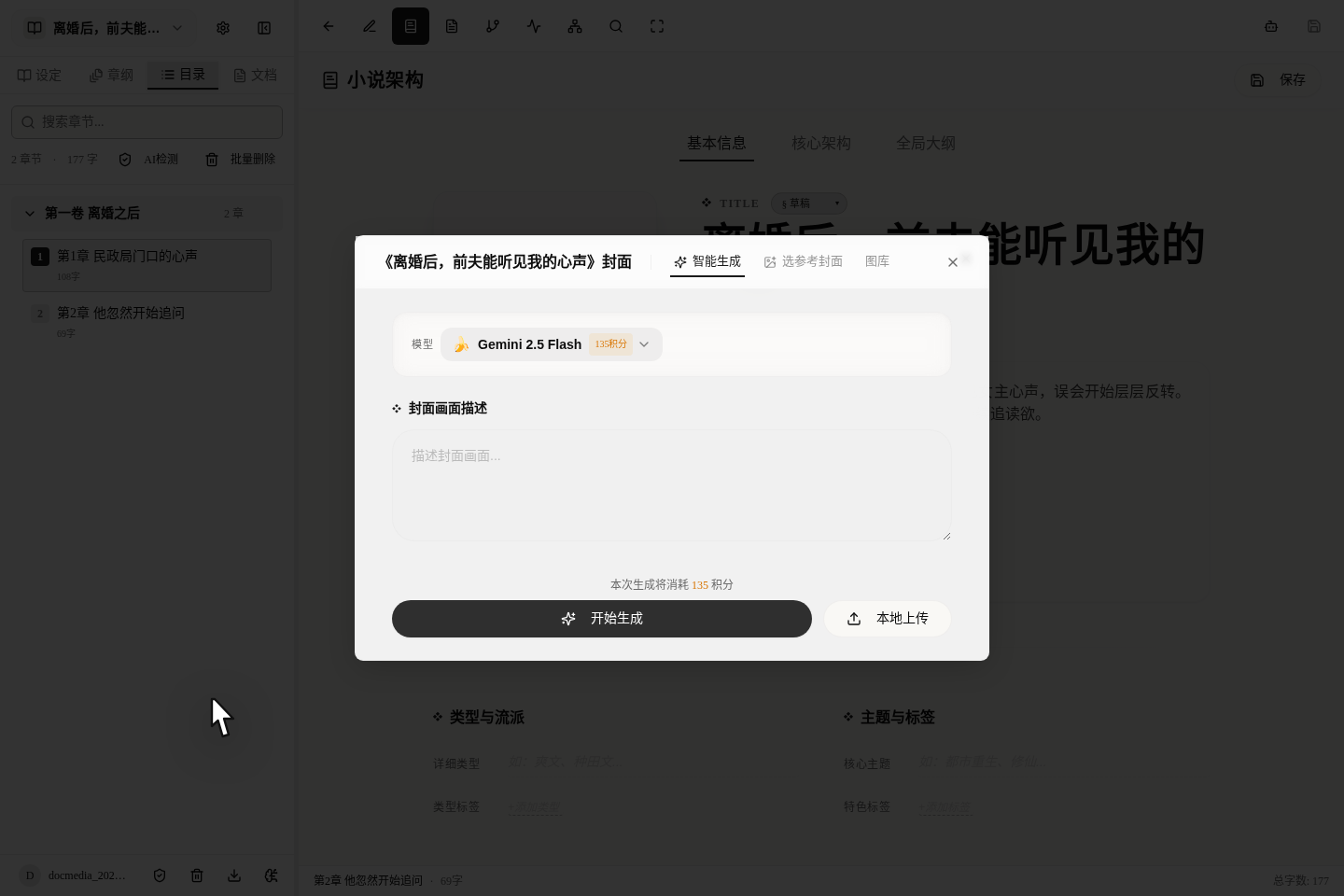
After you open the cover dialog, what you see is a real workbench, not a single button:
Smart Generate.Pick Reference Cover.Gallery.- Model selection, the cover image description, start generating and local upload.
- If the work already has a publishing channel set, the dialog brings the channel in as well, so you can steer the cover direction.
If you already have a reference book in mind or want to imitate the cover of a certain genre, first pick a direction from Pick Reference Cover, then come back and write the cover description; this is usually steadier than generating blindly.
Don't overlook a practical difference either:
- Cover
Upload from Devicecan be done directly in the structure page, without necessarily entering the shared dialog first. - Only when you really need a reference cover, a model and the gallery do you enter the
Generate AI Coverdialog. - After you pick or generate a cover, you still have to go back to the structure page and click
Savebefore the cover is formally written into the work's information.
Character portraits and setting illustrations add style and aspect ratio
Unlike covers, the real workbench for character portraits and setting illustrations also adds:
Styleselection.Aspect Ratioselection.- For models that support reference images, you can also upload a reference image.
This means it suits cases where you already know what the character or setting looks like and just want to visualize it, rather than using it to work out the worldbuilding in reverse.
Make character portraits after the character information is stable
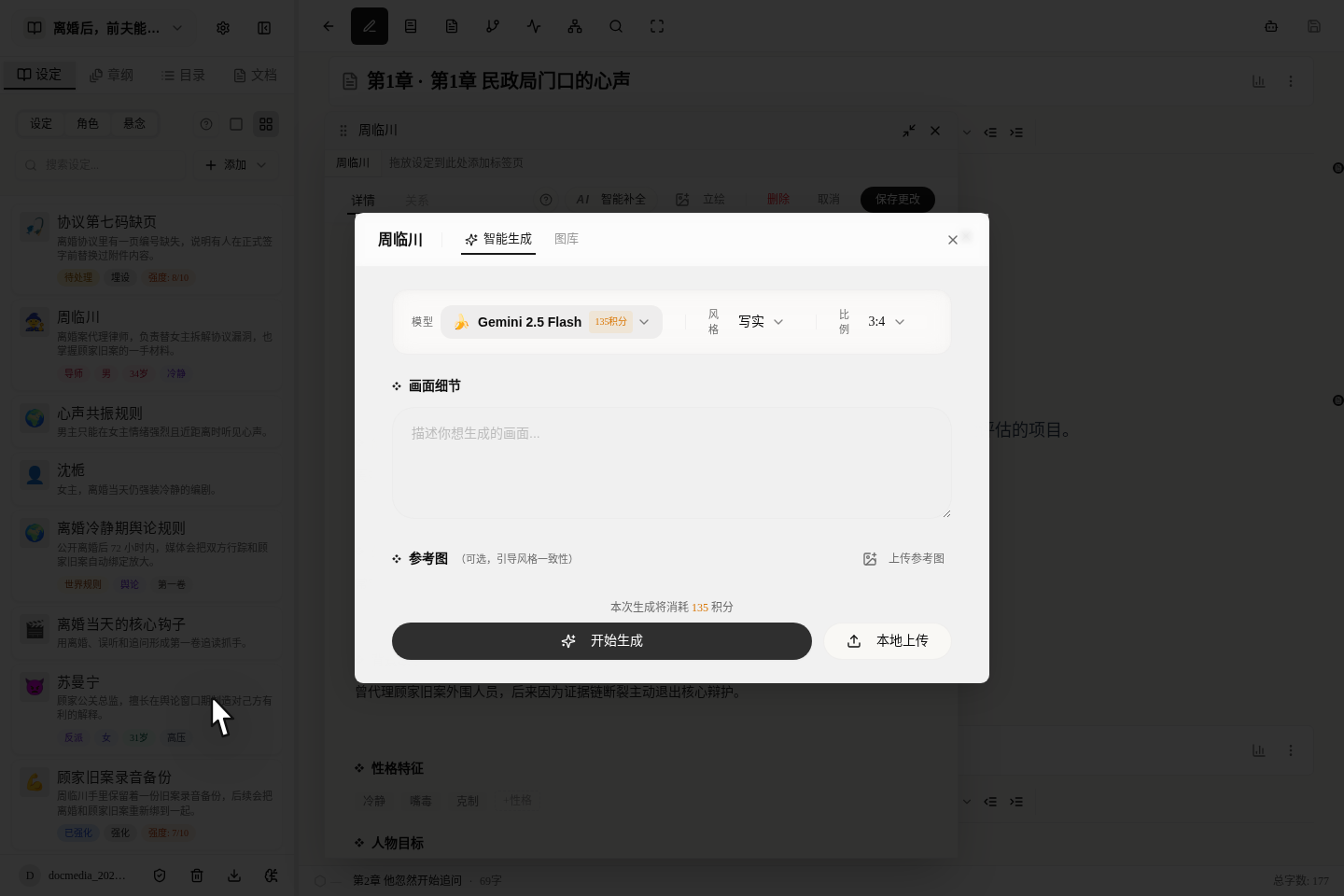
The real entry for character portraits is in the character card, not in the novel structure page. The steadier order is:
- First write clearly the character's name, role, short description, goal and conflict.
- Then click
Portraitto open the image dialog. - Then decide the style, the aspect ratio and whether to upload a reference image.
The thing character art fears most is "looking like a different person every time". So settling the character card first matters more than rushing to produce images.
For now it is better to understand character portraits like this:
- By default they lean portrait-oriented, which suits a main visual of the character.
- If the model supports reference images, you can first upload one or more reference images to help it keep the face, clothing or temperament consistent.
- After a successful generation it automatically goes into that character's own gallery, so you don't have to move it by hand.
Setting illustrations are better kept with the setting card
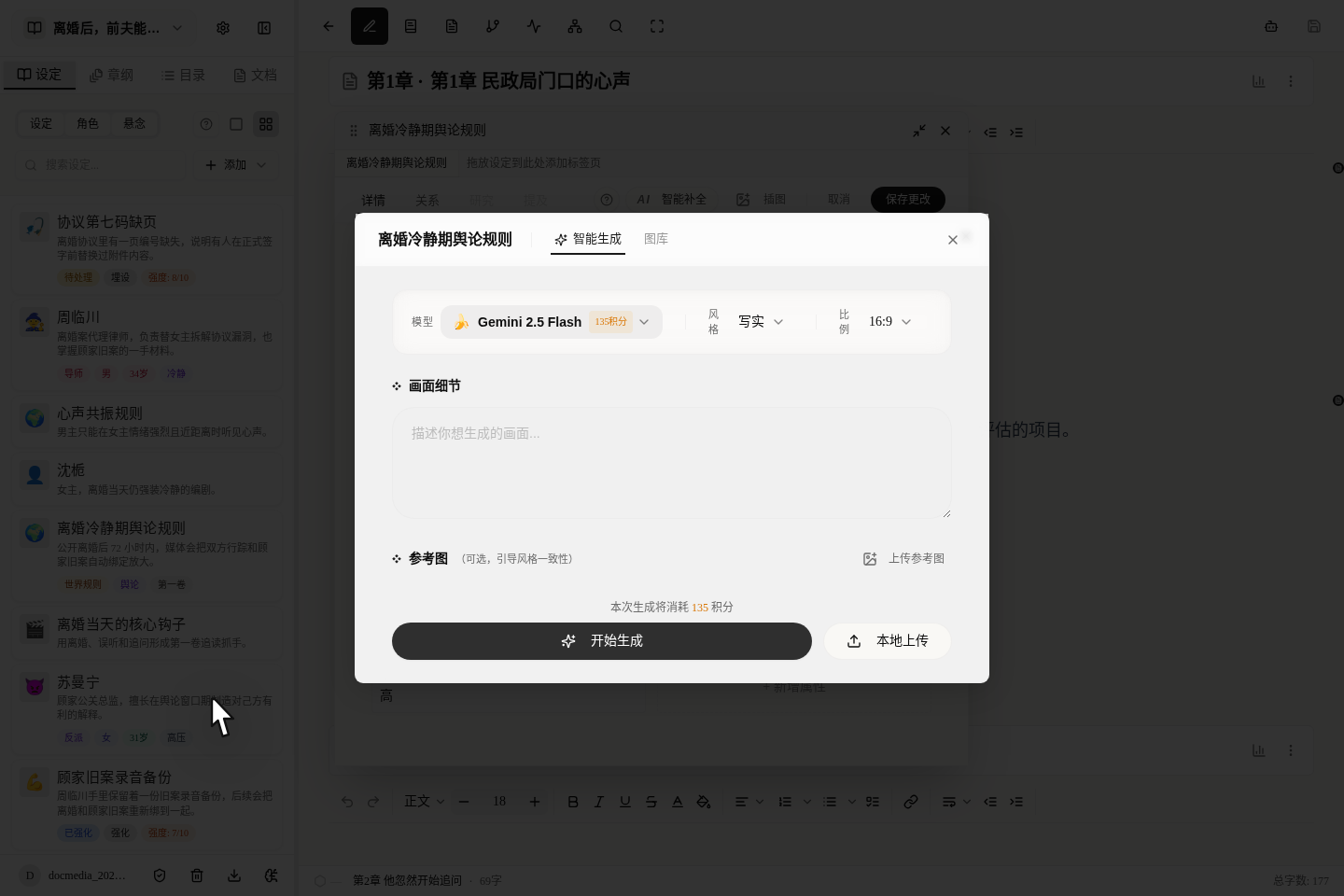
The real entry for setting illustrations is in the setting card. This entry is better for:
- Location and scene images.
- Images of key objects.
- Visual diagrams of world rules or systems.
Its benefit is not "one more picture", but that when you later look back at a setting, the image and the text appear on the same card, which makes long-term maintenance easier.
Setting illustrations currently have one more practical benefit: different setting types affect the default aspect ratio. For example, people or creatures suit portrait images, objects and systems suit square ones, and scenes suit landscape ones.
When to use the gallery and local upload
Right now every entry is not "generate once and vanish"; the results settle into the matching gallery.
A better division of labor is:
Start Generating: for the first generation or a major change of direction.Gallery: for looking back at old images, reusing usable ones and avoiding generating the same image again and again.Upload from Device: when you already have outside material and just want to attach it directly to this book, this character or this setting.
There is also a real behavior that is easy to overlook:
- After a successful generation, the image is automatically filled back into the current entry and switches to the matching gallery.
- Clicking an image in the gallery again can also set an old image back as the current display image.
- But whether you generate, upload or re-pick from the gallery, don't forget to save the outer card or structure page in the end.
The limits most worth knowing in advance
What this tutorial most needs to make clear is not how powerful the feature is, but the real current limits of use:
- Without a subscription,
Smart Generate / Pick Reference Cover / Galleryin the dialog show a membership restriction instead of the full workbench. - Some models and the ability to upload reference images are further limited by subscription tier; not all members are exactly the same.
- Character portraits and setting illustrations can only be made after the entry has been saved.
- If the prompt is too vague, the image may look good but be hard to reuse in the long run.
In other words, the image feature suits "stable information first, visualization after"; it is not meant to replace the setting itself.
A usage order closer to a real author's
If you want to fill in the visual materials for a new book, the recommended order is:
- First settle the title, synopsis and cover direction in the novel structure page.
- Make the cover first, to set the visual tone of the whole book.
- Then add portraits of the key characters.
- Finally add the setting illustrations that will appear repeatedly.
The benefit is that character images and setting images are more likely to share one visual system with the cover.
Suggested next steps
If you have not yet written your character and setting entries solidly, reading the following first will help more: