Spot and Remove the AI Tone: Make Your Text Read Human
Does your text sound like AI? Use AI Detection to mark AI-sounding passages, by chapter or in batches, then launch a corrective rewrite in one click.
In this article 9 sections
This feature is not a quick one-off test. It is a whole workflow: first test in batches in the chapter list and see how much it costs, then go back to the prose to see where the red lines were drawn, and finally throw the problem passages to the Correction AI to fix. That is the smoothest way to revise.
If what you want to know right now is "where exactly do I click to remove the AI tone, and how will the AI help me revise afterwards", read this new tutorial dedicated to the entry points first:
Removing the AI Tone From Your Text: Three Common Entry Points
First, find the right places
To check the AI tone today, look mainly in these 4 places:
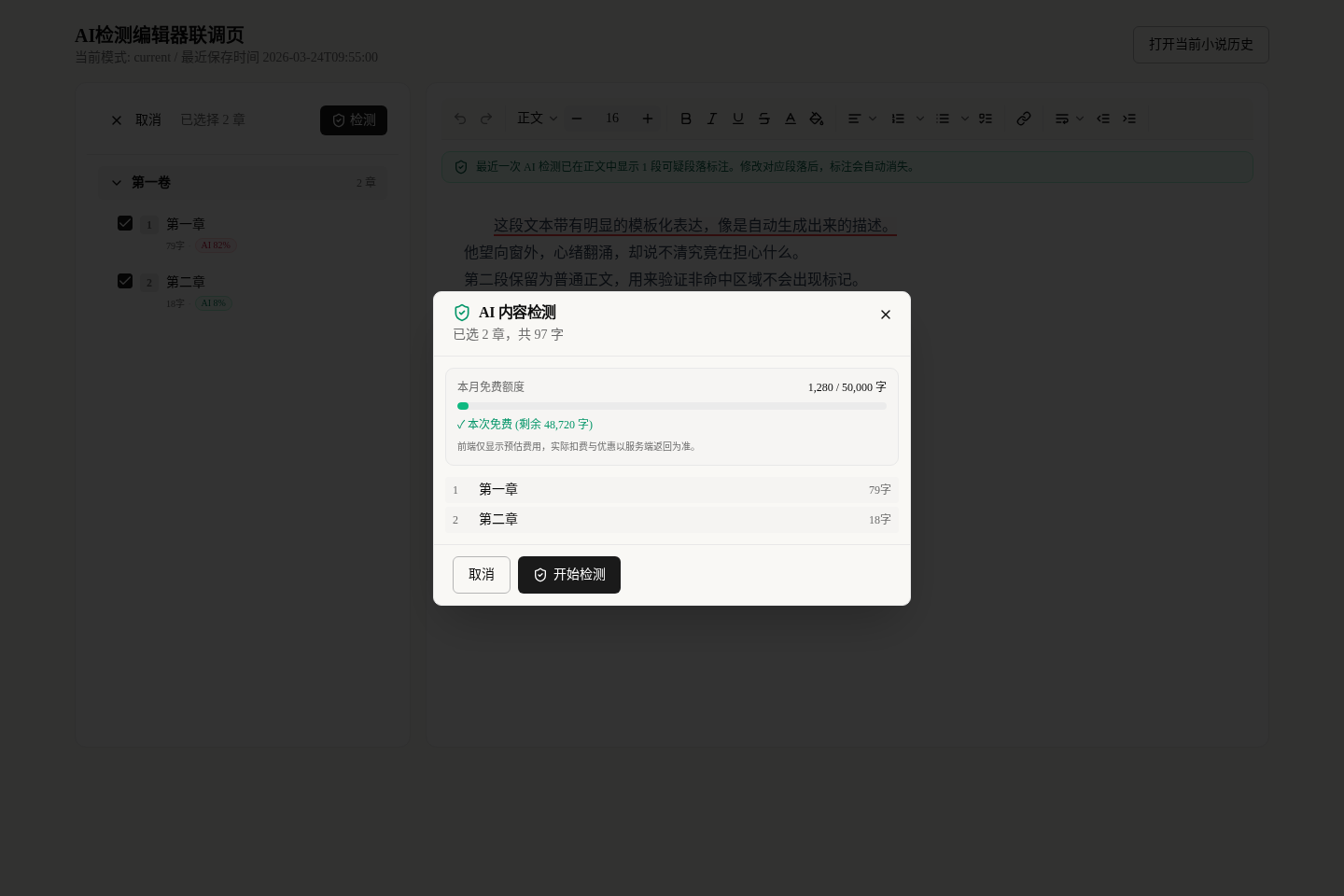
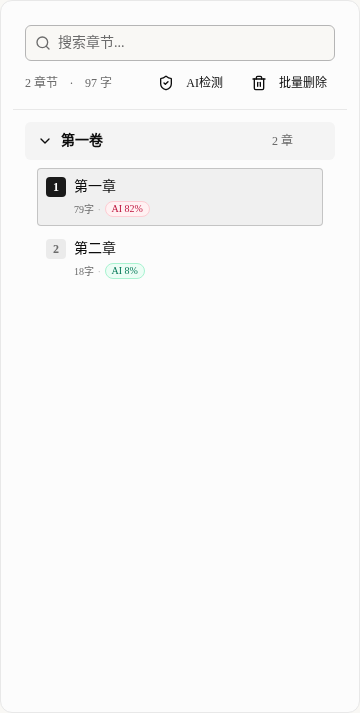
AI Detectionat the very top of theChapter List, for testing several chapters at once.- The small icon to the right of each chapter in the list, which shows at a glance whether that chapter's earlier test came out high-risk.
- The notice bar above the prose on the writing page and the lines under the paragraphs, which tell you which problem sentences have not been fixed yet.
- The shield button at the bottom of the left sidebar, for checking
Current Novel AI Detection History.
In other words, this feature works with the chapter list, the prose, the history and the AI assistant together.
Step 1: tick the chapters to test in the chapter list
Usually people do not test after every sentence; they test after finishing a chapter or several, all together.
We suggest using it like this:
- Click
AI Detectionat the very top of theChapter List. - Tick the chapters you want to test.
- Click
Detectto open the confirmation dialog.
This feature suits "batch checks", not testing as you write.
Step 2: see whether it is free first; do not click start with your eyes closed
When the dialog appears, look first at the progress bar at the top, and do not rush to click start. It works out the bill for you: how many free characters you have left this month, and roughly how many credits this test will cost (the final charge is based on the actual character count).
Here is a money-saving tip: the free quota can only be used to test a "single chapter". If you tick several chapters to test together, you will have to spend credits.
So if you just want to try it out, we strongly suggest picking one chapter to test. That costs nothing, and you can also see the problems very clearly.
Step 3: after the test, do not just look at the score; focus on how to fix
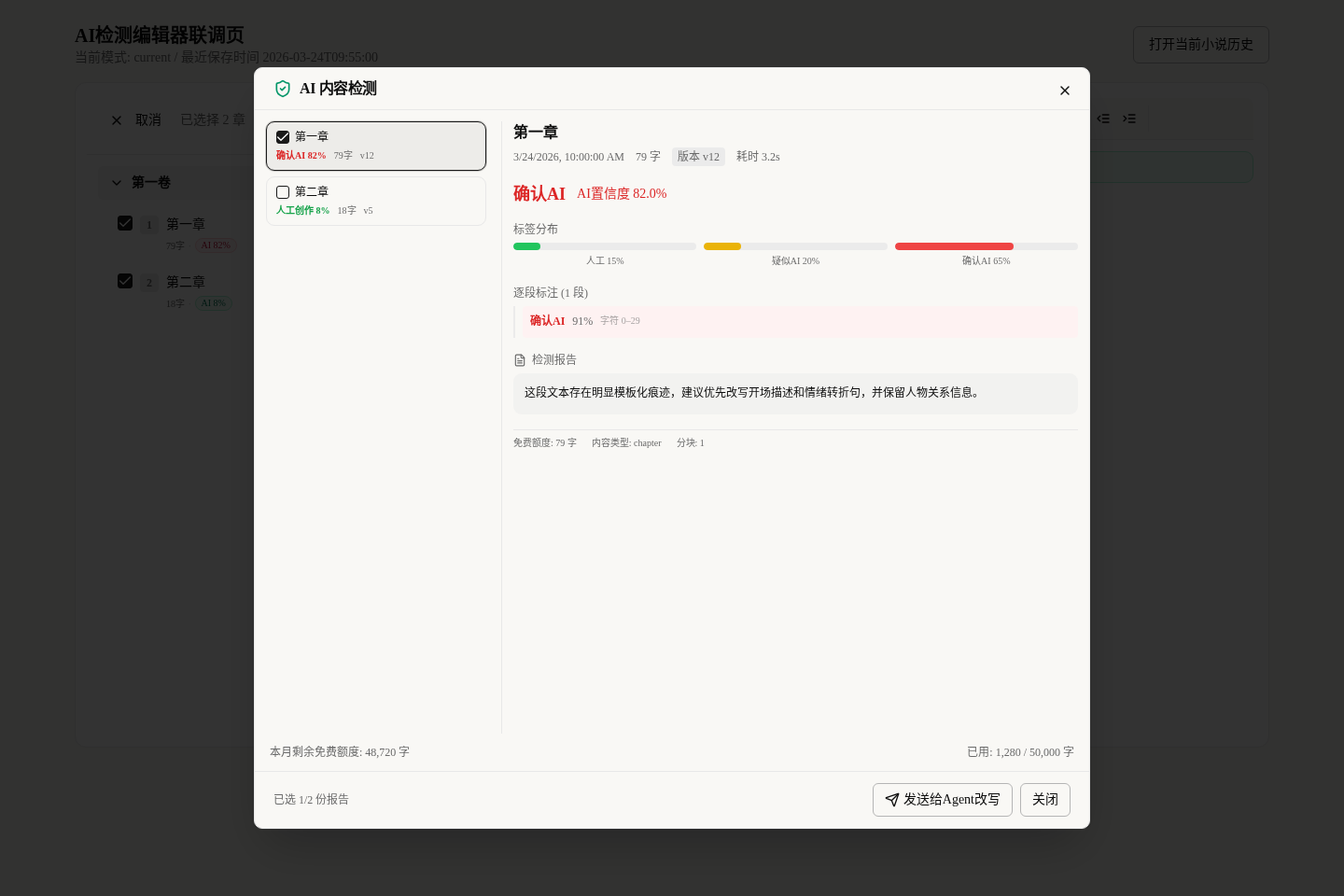
After the test, do not stare only at the AI% number. The list on the left and the details on the right are what matter.
Focus on:
- Which chapters are
Confirmed AI,Highly SuspectedorSuspected AI. - Each chapter's conclusion, how machine-written it looks, and its character count.
- How many passages were underlined in red.
- The revision advice given in the report.
The smartest thing to do at this point is not "close it after looking", but:
- Tick the reports that really have problems.
- Click
Send to AI Rewrite. - Send the report to the
Correction AIand let it revise according to it.
That way the AI is not revising blindly; it revises according to the inspection report and your prose.
Step 4: go back to the prose, see the red lines and confirm what is still unfixed
The most powerful thing about this feature is that it can draw lines right in your prose.
It works like this:
- The passages with problems from the most recent test are underlined in color in the prose.
- The notice bar above tells you how many problem passages were found this time and how many are still unfixed.
- As soon as you revise a passage, its red line disappears by itself.
- If you change so much that the text is completely different from when it was tested, the notice bar asks you to test again, so it does not draw lines in the wrong place.
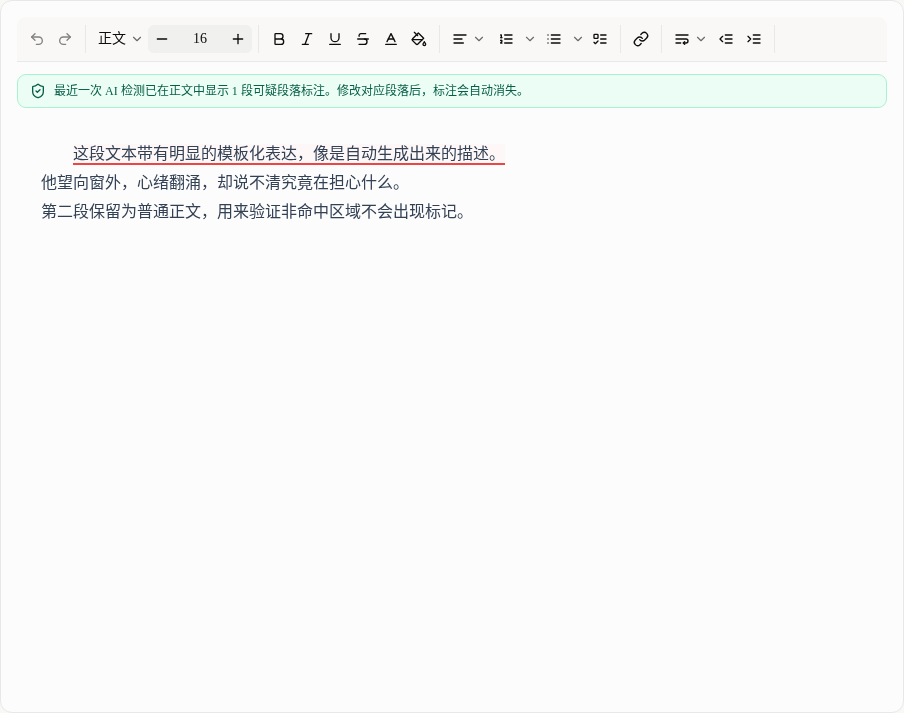
So this is how you should revise:
- Look at the notice bar above first and confirm how many passages are still unfixed.
- Go through the underlined sentences one by one and revise them.
- After revising, check whether the red lines are gone.
That way you will not end up "revising for ages without knowing whether you fixed the right place".
Step 5: the history is not decoration; it is for review and for continuing to revise
The shield button at the bottom of the left sidebar opens Current Novel AI Detection History, and it is not just for show.
This page is best for these 3 things:
- Seeing which chapters of this book have been tested recently.
- Filtering which tests succeeded and which failed, or showing only the chapters "confirmed as AI-written".
- Re-ticking earlier reports and sending them to the AI to revise.
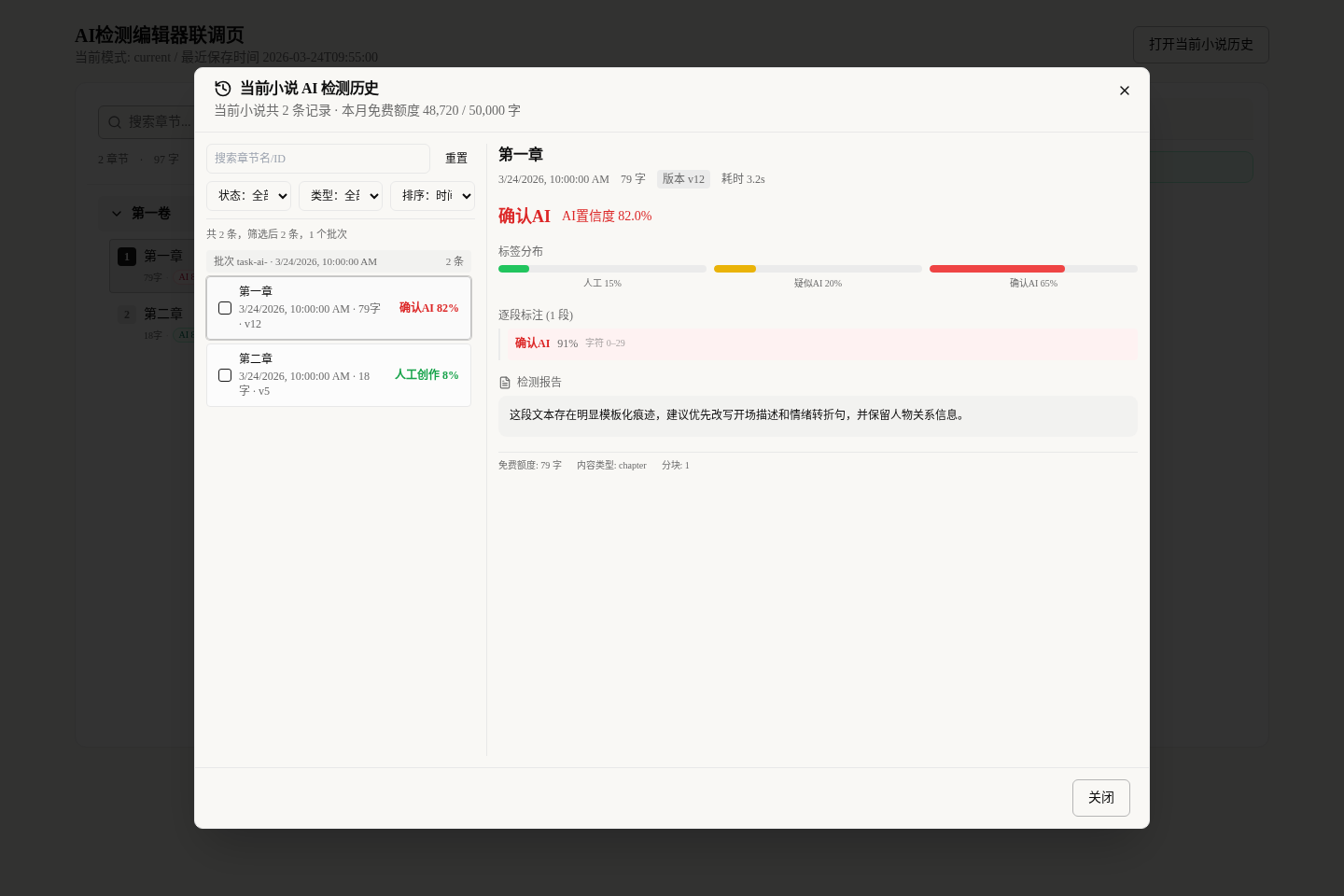
If you are an author who updates every day, this history is more useful than staring at the current chapter alone: it helps you find which recent chapters read most like a machine.
Suggested revision order
We recommend this order:
- After finishing one chapter or several, test them together.
- First check whether the free quota is enough and roughly how many credits it will cost.
- Pick out the highest-risk chapters from the results.
- Go back to the prose and fix the underlined sentences first.
- If you really do not know how to fix something, send the report to the
Correction AIfor help. - Finally, go back to the history and see which chapters still need another test.
This saves both time and credits.
The 4 pitfalls beginners fall into most
Looking only at the percentage, not at which passage has the problem
The percentage only tells you how AI-written the chapter looks; it does not tell you which sentence to fix.
Thinking a high detection score means good writing
AI Detection only checks whether the text has a "machine tone". It does not care whether your pacing is good or your suspense is gripping.
Re-testing the whole chapter after changing a single sentence
It is best to fix all the obvious problems first and then test again; otherwise it wastes too many credits and too much time.
Deleting and rewriting the whole chapter at the first problem
Often you only need to revise a few descriptions or swap a few words; there is no need to overturn everything.
What to read next
To make your text even better, we suggest reading on: